Hand-off and export
Approve screens for development, go back in time, and get frames out as images, PDFs, PSDs, Canva or Figma.
A design is finished when someone builds it. Doop has three things for that moment: a ready for dev
mark that tells people and agents which screens are approved, a per-frame version history for when
an agent's rewrite was not what you asked for, and export in the format the next tool needs — an
image for a deck, a vector PDF for review, a layered PSD, a Canva design, or editable layers in Figma. Since every
frame is real HTML, the ultimate export is the code itself: Copy HTML from a frame's menu, or the
canvas's styleguide.md for a coding agent.
Ready for dev
Select a frame and switch on Mark as approved in the Inspector's Development section, or right-click one or several frames and choose Mark ready for dev. The frame's title and its row in the Layers panel get a Ready for dev badge everyone sees; hover it for who approved and when.
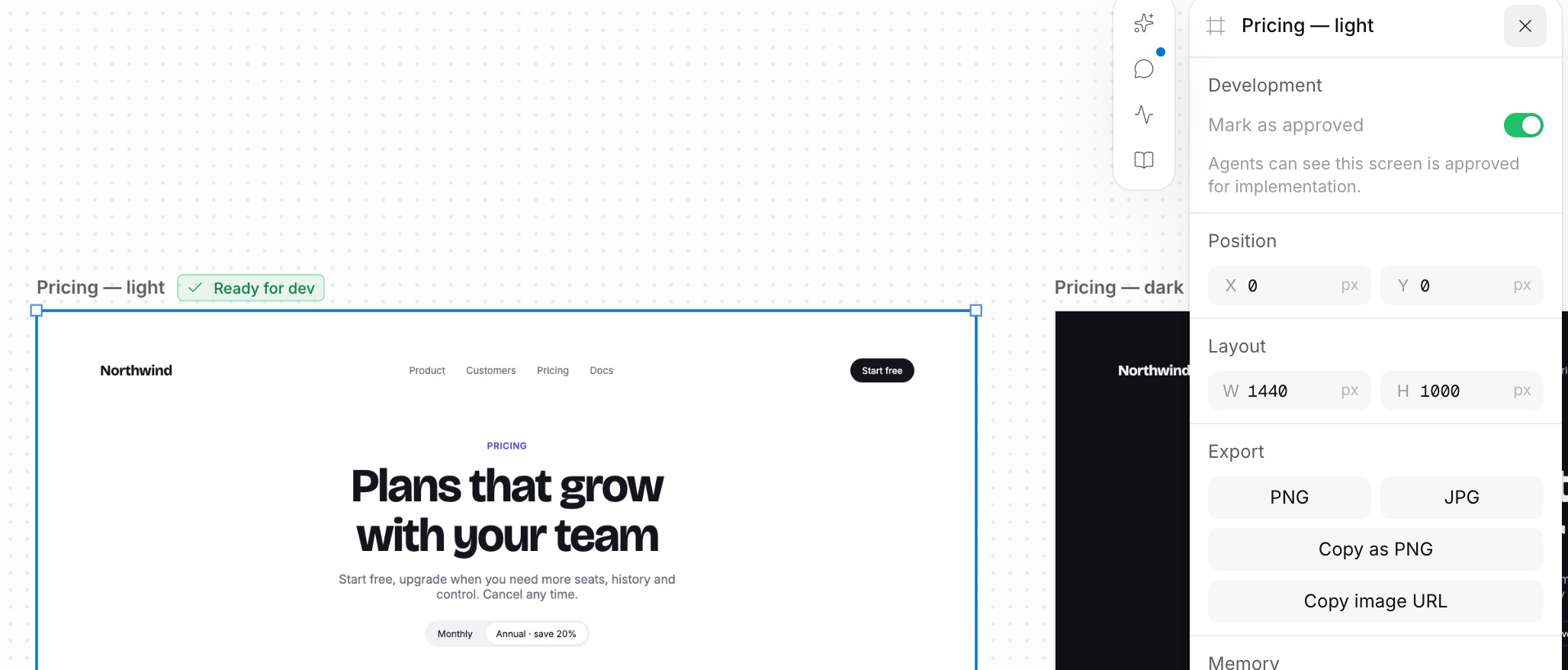
Approval is tied to the exact revision you looked at. The moment the frame's HTML or size changes — by a person, an agent, a sync, a stream or a restore — the badge flips to Needs review with the previous approver's name, so an implementation never quietly follows a design that moved. Look again and approve again, or Move to draft to dismiss the old approval. Renaming, moving, hiding, locking and token or font restyles do not touch approval. Copies of frames, pages and canvases start as drafts.
Agents see all of this. get_canvas and get_frame expose approvalStatus
(draft, ready_for_dev, needs_review) and the approval record, and
get_canvas takes approval_status: "ready_for_dev" to list only approved screens. The
agent guide tells a coding agent to re-read a frame right before implementing and to treat only
ready_for_dev as current sign-off. Approval is a signal, not a trigger: nothing starts building until
you ask. A brief in your coding agent that puts it together:
Implement every frame on the Checkout canvas that is marked ready for dev, using
the canvas's styleguide.md for tokens. Skip anything that needs review and tell me which.
Agents cannot approve; only a person can.
Version history
Every frame keeps its own history on the server. Right-click a frame and choose Version history…, or click History in the Inspector's footer. The live design is on top, then each earlier version with its author (an agent's icon for agents), age, size and byte count. Pick one to preview it at its own size; Restore this version puts it back — and files the design you replaced as a version too, so a restore is itself reversible, and ⌘Z undoes it locally.
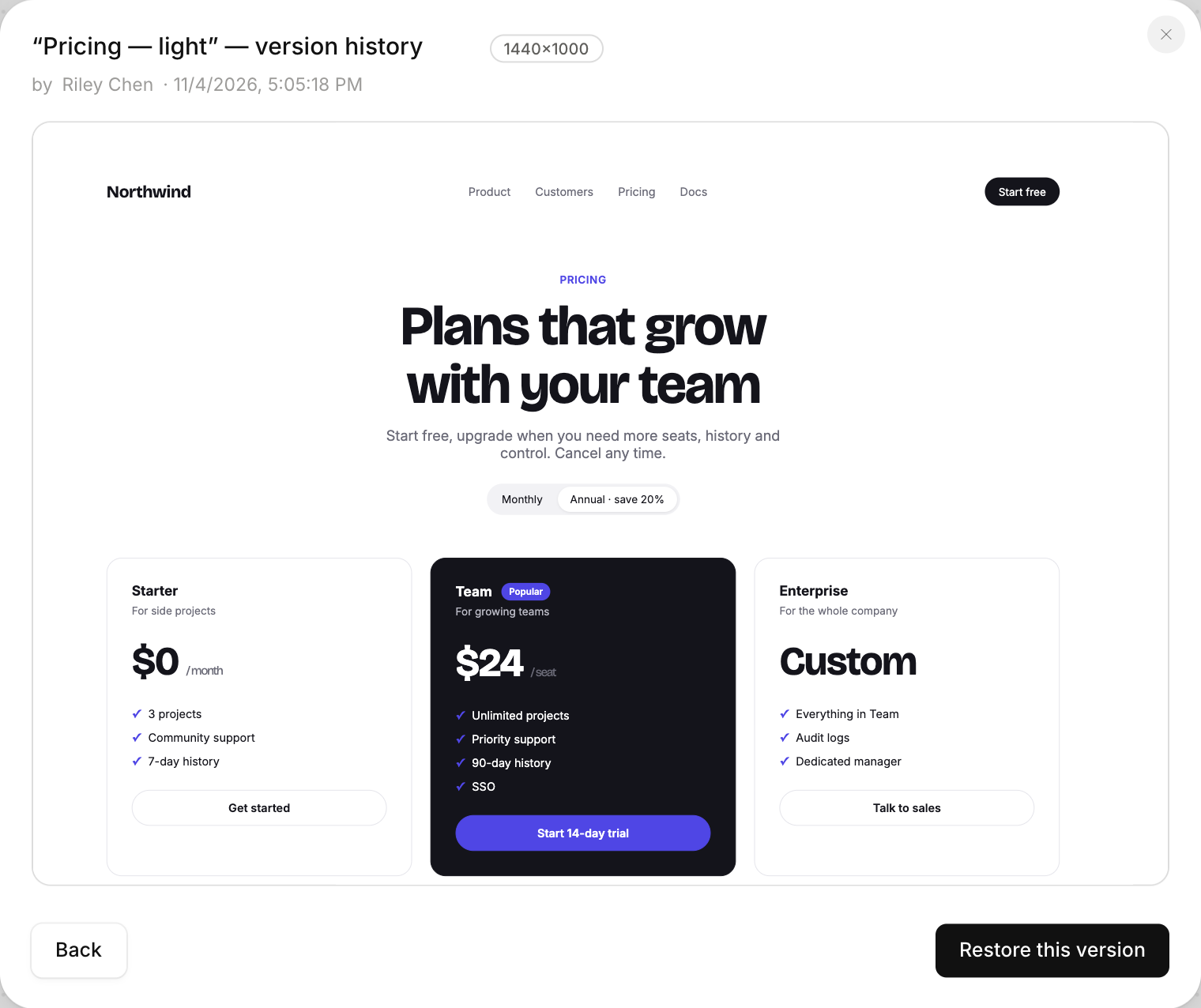
Versions are kept per burst of edits, not per keystroke: a streamed design, an agent's tweak right after its redesign, or a minute of typing in the HTML editor each count as one. What gets filed is the state a burst replaced, so every design that ever stood on the canvas is kept exactly once. A frame holds its last 50 versions. Restoring puts back HTML, width and height; name, position and approval are not restored — a restored design needs approving again.
Agents have list_frame_versions and restore_frame_version, so "go back to the version
before you changed the hero" is a complete instruction. Your local undo (⌘Z) is separate: it reverts your own
actions in this browser and never another person's or agent's work, which is exactly what history is for.
Export a frame as an image
Select a frame and the Inspector’s Export section has PNG, JPG, Copy as PNG and Copy image URL, all at 2×; the frame’s right-click menu has Copy as PNG, Copy image URL and Export…. An element’s menu offers Export as PNG, Export as JPG and Copy as PNG: the frame is rendered whole and cut to the element’s box, so a card or a button exports with every inherited style and whatever paints behind it.
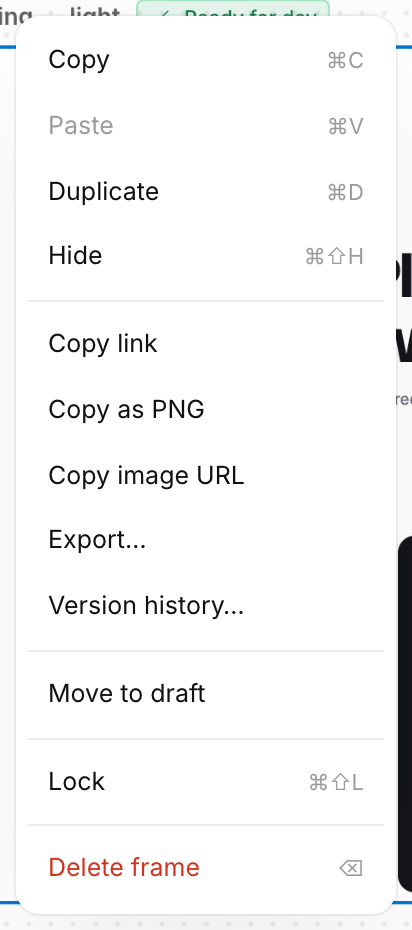
The image is drawn by your own browser from the live frame — the fonts, canvases and images you are looking at —
so it matches the screen. When something cannot be read that way (an image host that blocks cross-origin reads, a
nested document inside the frame, a frame that is off screen), Doop renders it on the server instead; the result is
the same, just a moment slower. Copy image URL gives a stable server-rendered image address you can
paste anywhere, and agents get the same through export_frame.
Export as a document
Click Export in the top bar for the whole-canvas exports. Each shows a checklist of the page's frames in canvas reading order — top to bottom, then left to right — so what you tick is the order you get.
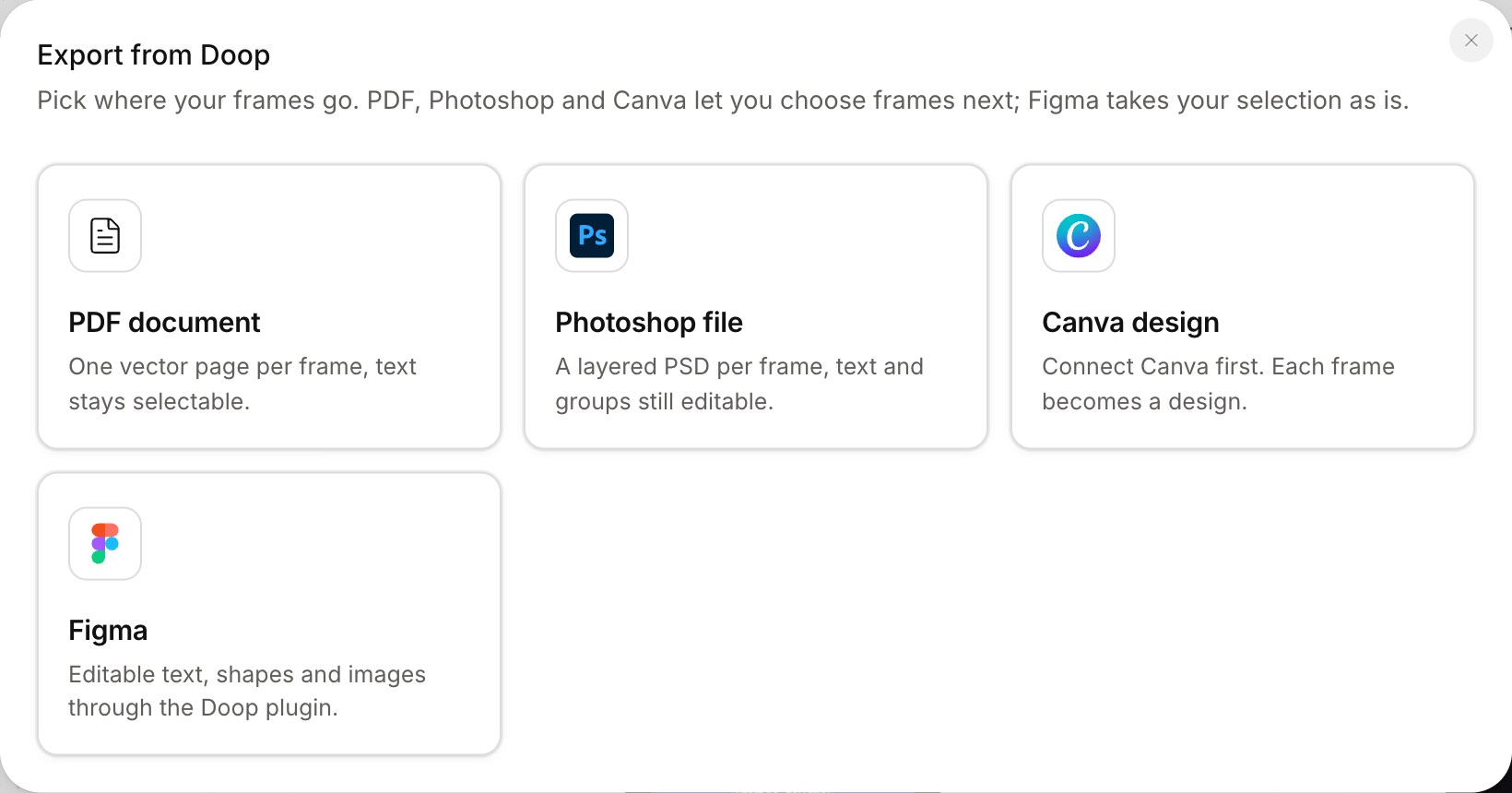
- PDF — one vector page per frame, each page the frame's own size, text selectable. Up to
40 frames per PDF; a long document takes a few seconds per page. Agents get the same file from
export_frame. - Photoshop (PSD) — a layered PSD per frame: containers become groups, text stays live and editable, every painted element is its own pixel-perfect layer with opacity and blend mode carried over. The file recomposites to exactly what the browser painted, so a Photoshop user picks up where the canvas left off. Doop imports PSDs too; see Import.
- Canva — each frame becomes a new Canva design with live text boxes over a rendered background, opened in a new tab as it lands. Connect your Canva account on the Integrations page first; a design takes a minute or two to render on Canva's side.
- Figma — your selected frames as editable text, shapes and images through the Doop plugin: Send to Figma… from a frame's menu or from Export. The steps are in the import guide under Send frames back to Figma.
PNG, JPG and PDF are in the open-source build; Photoshop, Canva and Figma are on the hosted doop.design.
Hand the code over
Most teams building from Doop do not export at all. A frame is a complete HTML document, so a coding agent connected
to the same canvas reads it with get_frame and translates it into the codebase's components, with the
canvas's tokens for its values and its style guides
for the rules. For a human developer, Copy HTML on the frame menu copies the document, and
$ curl https://doop.design/api/canvases/<canvas-id>/styleguide.md is the one file to drop into a repo: every token as a table and as CSS, followed by every style guide written on the canvas.
Tips
- Approve per screen, not per canvas. A canvas usually has explorations beside the final; the badge says which is which to a coding agent that would otherwise build them all.
- Check history before re-briefing. If an agent's second pass lost something good from its first, restore the first and brief the change — cheaper than describing what you lost.
- Element exports for component docs. A button exported from inside its frame carries the real shadow and background behind it; a screenshot of it alone would not.