Import
Bring real content onto the canvas — websites, repos, live app screens, and images.
Good design work starts from real material. Doop has five ways to get it onto the canvas: import any public website as editable frames, connect a GitHub repo and pull its design system and screens out of the code, bring Figma designs over through an agent connected to both tools, drop a sync snippet into an app that lives behind a login, or simply copy & paste. Everything lands as frames that everyone on the canvas — human or agent — can see and work from.
Website import
The fastest way to redesign something that already exists. Click ⤓ Import in the canvas toolbar, paste a URL, and Doop captures the page as a single frame: the real HTML, with every stylesheet inlined, images resolving, and all scripts stripped. What you get is a faithful, fully editable snapshot — not a screenshot.
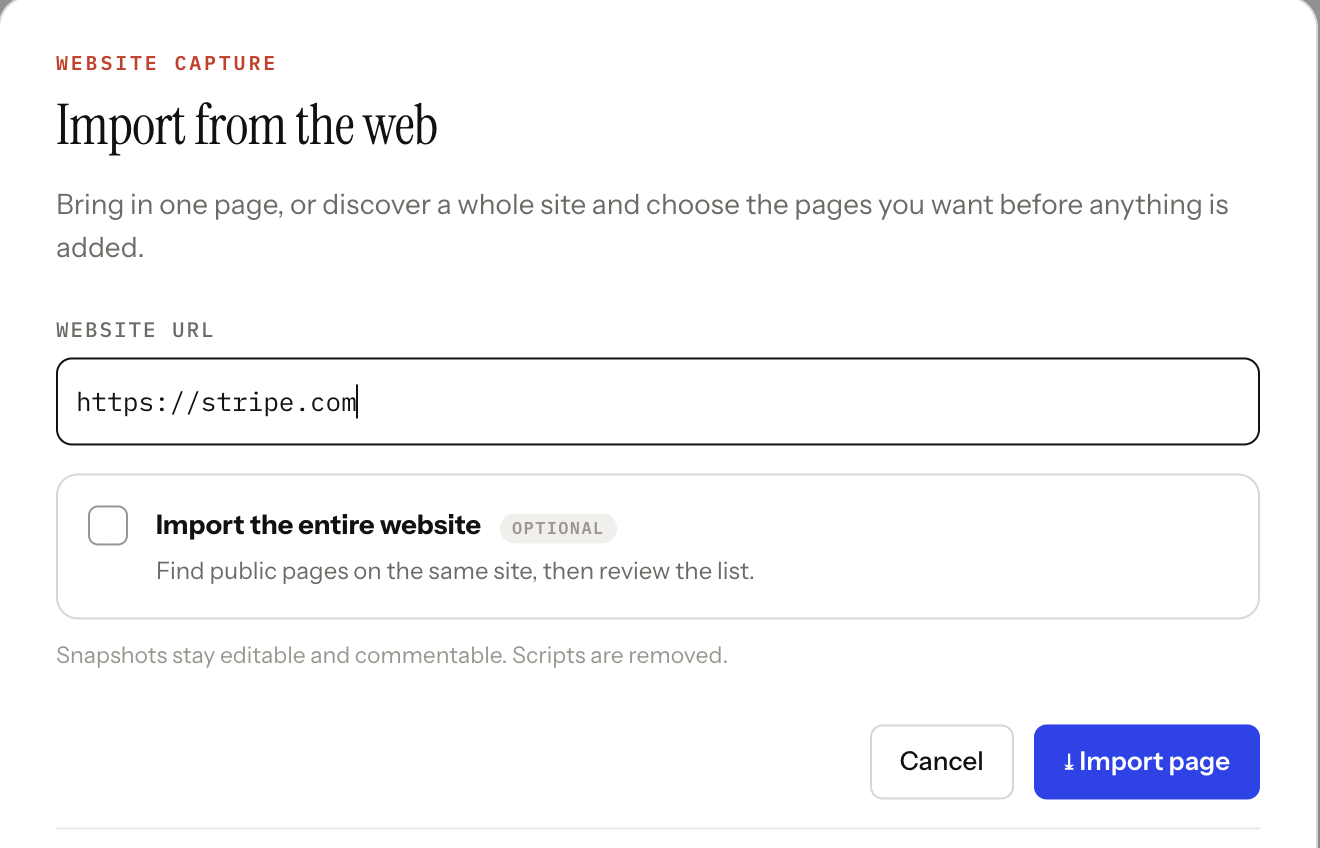
Agents have the same power through the import_webpage tool. Give your agent a brief like
"redesign acme.com's pricing page" and a well-behaved agent imports the page first, leaves that source frame
untouched, and designs in a fresh frame next to it. Imports are de-duplicated — if the same URL is already on the
canvas, agents reuse the existing snapshot instead of stacking up copies.
What happens under the hood:
- The page is loaded in a real browser, scrolled to the bottom so lazy-loaded images and reveal animations fire.
- Scripts, iframes, and anything else executable are removed, and a strict content-security policy is injected — imported pages render live but can never run code on your canvas.
- All linked stylesheets are fetched and inlined, so the snapshot keeps looking right on its own.
- The frame is named after the page title, rendered at 1280px wide at the page's natural height (up to 6000px), and placed to the right of your existing frames.
Import an entire site
Redesigning more than one page? Tick import the entire website in the Import dialog. Doop discovers the site's pages — from its sitemap and by following same-site links — and shows you the list, homepage first, everything selected by default. Uncheck what you don't need and confirm.
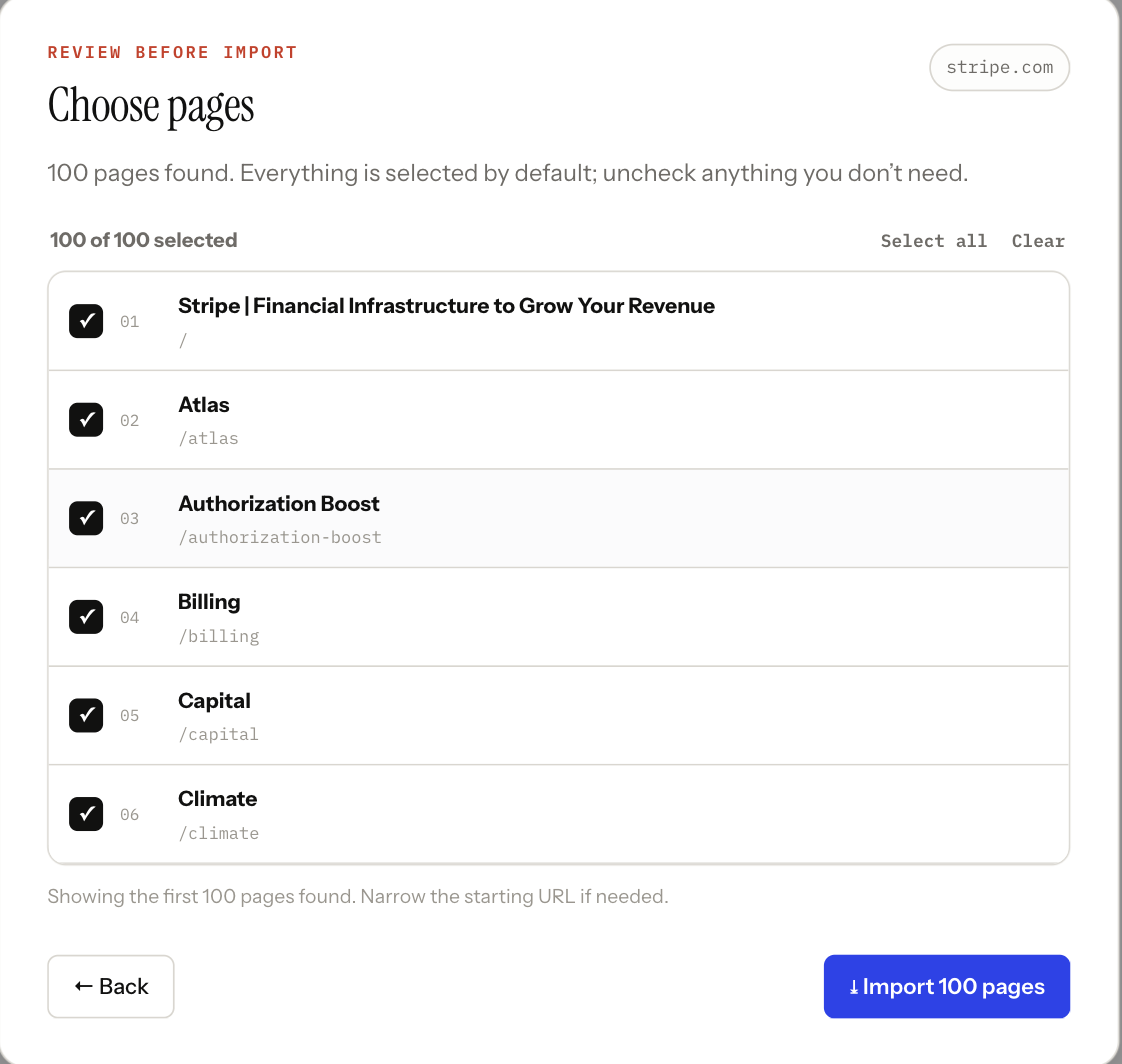
- Up to 100 pages per import, all from the same domain.
- Pages import a few at a time and land in a tidy three-column grid next to your existing frames.
- If some pages fail (a 404 deep in the sitemap, a blocked path), the rest still import — you'll see a count of what made it and what didn't.
What can't be imported
- Pages behind a login or bot protection. If the site answers with a challenge or an error, the import fails cleanly rather than capturing a login wall. For those, use the sync snippet — it captures from your browser, where you're already signed in.
- Private and local addresses. Only public
http(s)URLs work —localhost, internal hostnames, and private IPs are blocked. The sync snippet covers localhost too. - Very heavy pages. Documents over ~3 MB of HTML or with more than 2 MB of CSS are rejected to keep canvases fast.
Imports are limited to 5 per minute per person (agents included).
Inspect without importing
Sometimes an agent just needs to look at a page — check a competitor's layout, read some copy — without
adding anything to the canvas. That's the view_website tool: it returns a screenshot and the page's
visible text to the agent, and nothing appears on the canvas. Rule of thumb: if the page is source material the
whole canvas should see, import it; if it's a quick read-only glance, view it. The two share the same capture
pipeline, so a page that can't be imported can't be viewed either.
GitHub import
Your product's real design system lives in its code — tokens, theme files, tailwind config, the component library. GitHub import connects a repository and pulls that onto the canvas, so every design made there matches what you've actually shipped. It reads the code directly; no deployed site needed.
Connecting a repo can bring in three things:
- The design system, as a pinned style guide. Doop distills the repo's theme and token modules, framework config, global styles, and app shell into a canvas guideline — the style rules every agent working on the canvas follows from then on. This is the headline; importing screens is optional.
- Screens sketched from code. Pages (Next.js, SvelteKit, Remix, and friends), Storybook stories, and UI components are read from source and rendered as frames — Doop's agent reads the screen's code and the components it imports, builds the frame, then screenshots and corrects its own output.
- Static HTML, as-is. Any
.htmlfiles in the repo import directly as sanitized frames.
Connect a repo
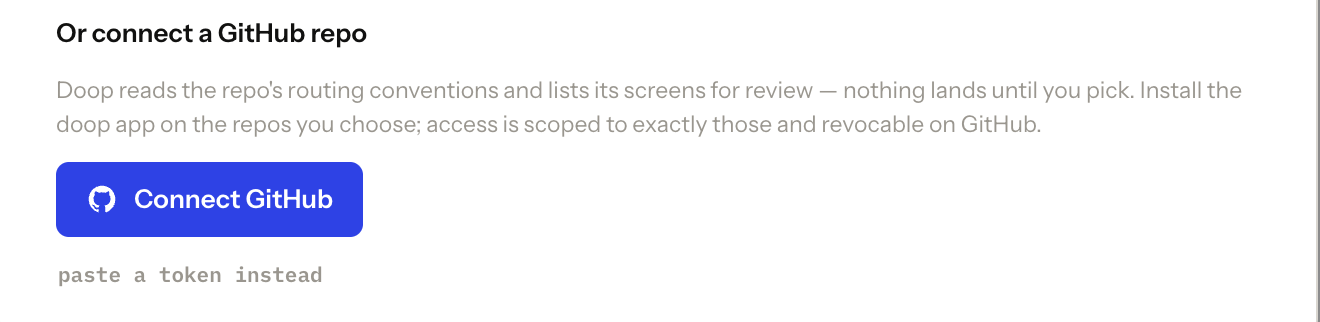
Open the Import dialog and find Or connect a GitHub repo. Click Connect GitHub to install the Doop GitHub App and pick a repository — private repos work. If you can't install apps, paste a fine-grained personal access token instead. Either way, credentials stay on the server; tokens never appear in frames or reach agents.
Hit Analyze and Doop maps the repo: it detects the framework and lists everything importable — components and stories first, with the full page list behind an optional toggle. Check what you want (design-system extraction is on by default), then import.
The import runs as Doop Agent board cards — the design system first, then screens a couple at a time. Nothing lands until a card finishes, so a failed screen leaves no debris and can be retried from the board. Imported frames carry a GitHub badge, and connected agents are taught to treat the repo as the source of truth when editing them.
Limits: up to 40 screens per import (the analyzer surfaces up to 300), the same 5-imports-per-minute budget as website import, and each import consumes Doop Agent task allowance.
Figma import
There's no Figma button in the Import dialog — the bridge is an agent connected to both tools. Figma ships an official MCP server that lets agents read any design out of a file; Doop's MCP server lets the same agent recreate it on the canvas. Point an agent (Claude Code, Cursor, or any MCP-capable agent) at both, hand it a Figma link, and the design lands as a fully editable frame — real HTML and CSS built from the design's actual tokens, not a screenshot.
Set it up once
- Connect the Figma MCP server to your agent — Figma's official server, signed in to the Figma
account that can open the file. In Claude Code that's the Figma plugin or
claude mcp add --transport http figma https://mcp.figma.com/mcp. - Connect the Doop MCP server the same way — see Get started if your agent isn't on a canvas yet.
Import a design
- In Figma, select the frame or component you want and copy its link (right-click → Copy/Paste as → Copy link to selection). The link must point at a specific node — a file-only URL doesn't tell the agent which design to pull.
- Give your agent a brief like: "Import this Figma design onto my Doop canvas: https://figma.com/design/…?node-id=1-8505".
- The agent reads the design out of Figma — reference markup, the exact color and type tokens, every icon and image as an exported asset, plus a screenshot of the original.
-
It re-hosts the assets with Doop's
upload_assettool (Figma's export links expire after about a week; Doop's URLs are permanent) and rebuilds the design as an HTML frame at the node's exact size. The highest-fidelity route is to carry Figma's markup over verbatim — the design context is Tailwind classes with exact values, which render as-is inside a frame — so the layout and styles are the design's own numbers, not a reinterpretation. - Finally it screenshots its own result against the Figma original and fixes any differences before calling it done.
From there it's a normal Doop frame: everyone on the canvas can comment on it, agents can restyle it, and the Doop Agent can iterate on it like anything else.
Good to know
- Fidelity is very high, but not bit-identical. With the verbatim route, colors, spacing, radii, and sizes are the design's exact values. What can still differ is text rendering — browsers and Figma break lines and space letters slightly differently — and exotic effects like blend modes or masks. Intricate pages are worth importing one frame at a time.
- Fonts come over by name via Google Fonts (Figma's
font-['Face:Weight']classes need the:Weightsuffix stripped and the face loaded with a font<link>). Designs using private or licensed faces render in the closest available font. - Prototype interactions don't transfer — the import captures the visual design, not Figma's prototype wiring.
- Access follows your Figma account. The agent can only import files the connected Figma user can open — drafts, team files, and files shared with you all work.
- The reverse direction works too: the same agent can push a Doop frame into Figma through the Figma MCP server's design-generation tools.
Sync snippet for live sites
The website importer can only reach public pages. The sync snippet is the escape hatch for
everything else — your product behind SSO, a staging site on a VPN, the app running on localhost. It
captures screens from your own browser, where you're already signed in.
Open the Import dialog and create a sync key. You get a one-line snippet to drop into your app:
<script async src="https://doop.design/doop-sync.js?key=dk_…"></script>
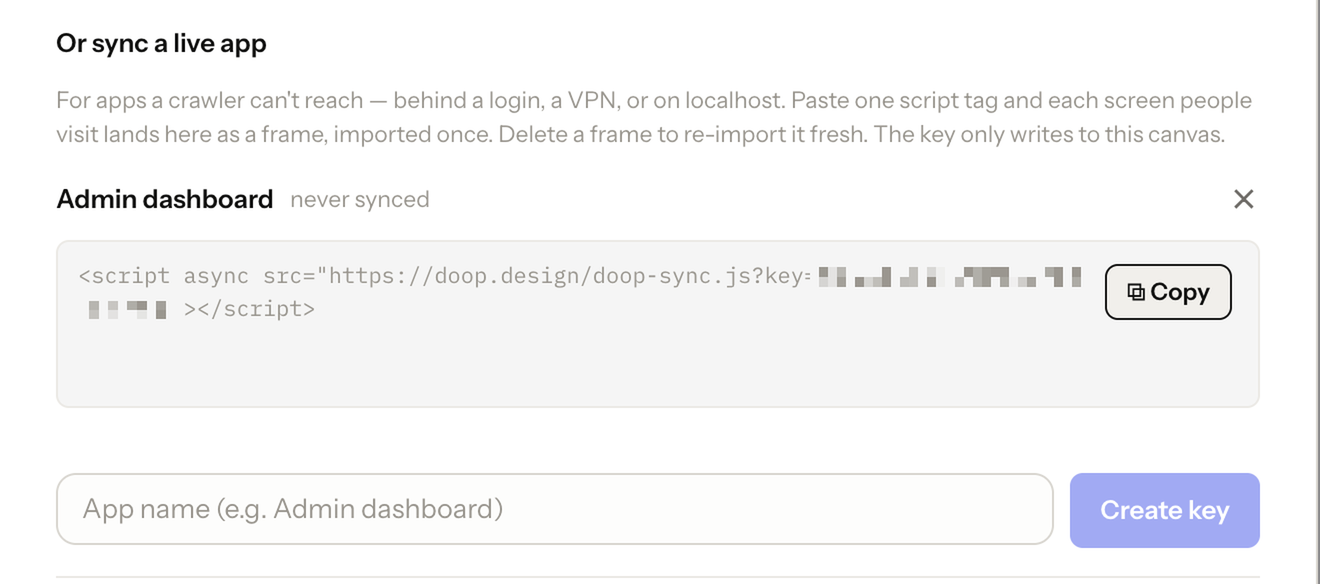
Then just browse your app. Every distinct route you visit becomes a frame on the canvas — sanitized HTML, no scripts, same treatment as a website import — and Doop also records which screens link to which, so agents understand the app's flow, not just its pages.
Built to be safe to run against real apps:
- Input values are never captured. Anything you've typed into a form is dropped.
-
Mark sensitive elements with
data-doop-maskto redact them, ordata-doop-sync-ignoreto skip them entirely. - The sync key is write-only and scoped to a single canvas — it can't read anything back.
- Synced frames freeze 15 minutes after creation. They're an import, not a live mirror — to re-import a screen, delete its frame and visit the page again.
Snapshots are capped at 2.5 MB per screen, 30 captures per minute per key, and a given page re-syncs at most every 30 seconds while its frame is still fresh.
Copy & paste
Copy an image anywhere — a screenshot, a photo, a crop from another tool — click the canvas, and hit ⌘V. Each image becomes its own frame, sized to fit (scaled down to at most 900px on the long side), named after its file, and centered in your current view. Paste several at once and they line up in a row.
Images can be PNG, JPEG, WebP, GIF, or SVG, up to 5 MB each.
Attach images to a brief
When you queue work for the Doop Agent, the prompt bar's paperclip (or a paste into the prompt) attaches up to 4 images. Each attachment becomes a reference frame on the canvas, and the agent is instructed to study them before designing — and to treat them as untouchable source material, never something to edit.
Upload assets from an agent
Connected agents bring their own imagery onto the canvas with the upload_asset tool. It returns a
permanent public URL the agent can reference from any frame. Three ways in:
- From a URL — pass
source_urland Doop fetches the remote file server-side. - From a local file — pass
local_file: trueand Doop returns a one-time upload URL plus a ready-to-runcurlcommand. The file streams straight from the agent's machine to Doop — the bytes never pass through the model. The link is single-use and expires after 15 minutes. - Inline — base64
data, as a last resort for tiny files under ~100 KB.
Same rules as pasting: PNG, JPEG, WebP, GIF, or SVG, 5 MB max, with the file type verified from the actual bytes — not the file extension. Uploads are limited to 15 per minute.
Troubleshooting
- "This page can't be captured." The site is behind a login, a bot challenge, or returned an error. Retrying won't help — use the sync snippet, or paste screenshots instead.
- The import looks different from the live site. Snapshots run without JavaScript, so anything the page builds entirely at runtime (client-rendered apps, embedded players) won't appear. The sync snippet captures the rendered result from your browser and handles these cases much better; if the app's code is on GitHub, a repo import sketches those screens from source.
- GitHub analyze finds nothing. Screen detection follows framework conventions — Next.js
app/andpages/routes, SvelteKit routes, Remix routes, Storybook stories, and PascalCase components. Repos outside those patterns still get the design-system extraction. - Figma import can't read the file. Check the link contains a
node-id(copy a link to the selection, not the file) and that the Figma MCP server is signed in to an account that can open the file. - "Image exceeds the 5 MB limit." Resize or compress before pasting — frames rarely need more than 900px on the long side anyway.
- Whole-site discovery missed some pages. Discovery reads the sitemap and follows same-site links; pages that aren't linked or listed won't be found. Import them individually by URL.
That's the full import surface — pull in the real thing, then design against it. Connect an agent →