Collaborate
Sharing, roles, workspaces, comments and links — how people review and work together on a canvas.
A canvas is a room. Everyone in it sees the same frames, each other's cursors, who is selecting what, which agent is working on which frame and a live activity feed — all over one connection, with no refresh. This page is about who gets into the room, what they may do there, and how feedback travels: share links and invites, workspaces for teams, comments pinned to elements, and links that point at one element inside one frame.
Share a canvas
Every canvas starts private: only you can open it. Click Share in the top bar to change that. The modal has three parts — people, the workspace, and the link.
- Invite by email. Type the address of someone with a Doop account and they get edit access to this one canvas, an email saying so, and the canvas appears on their home page at once. Invited people can leave again; the owner can remove them.
- Workspace. Move the canvas into one of your workspaces and every member of it can open and edit the canvas without an invite. Personal — invite-only is the default.
- Anyone with the link can… — No access, View, Comment or Edit. Copy the link and send it. Visitors still sign in (a signed-out visitor sees the sign-in screen), and the link grants exactly the level you picked, nothing more.
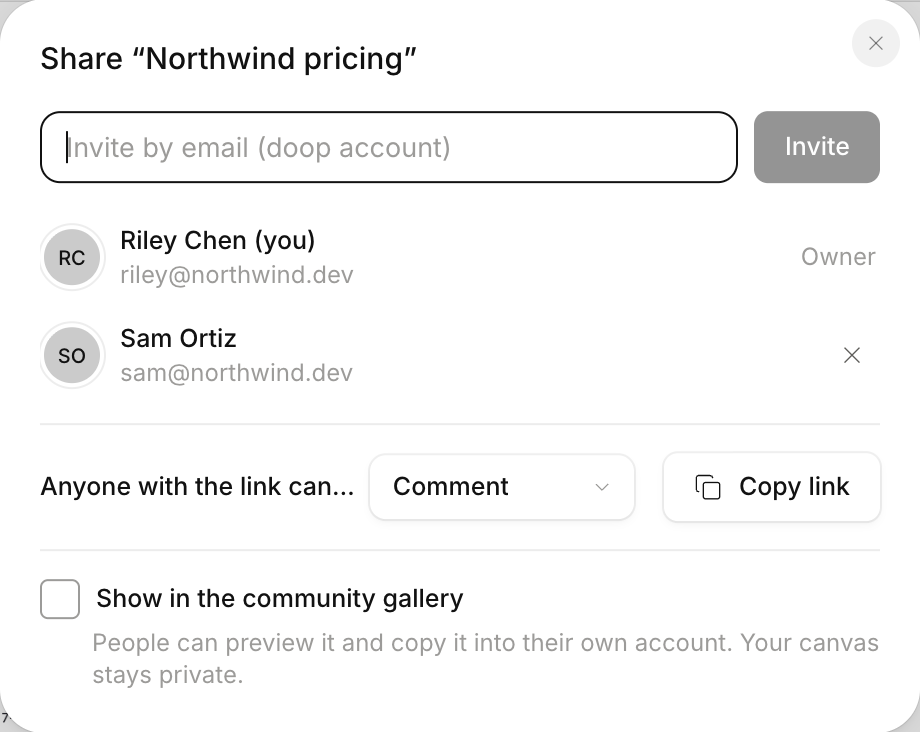
Changing the link's level applies immediately to everyone already in the room: people who lose access are disconnected, people who keep it see their tools change. The server enforces every level regardless of what the editor shows.
What each role can do
- View — pan, zoom, select frames to read them, follow the activity feed and read comment threads. No tools, no Inspector, no agent composer. A View only badge sits beside the canvas name.
- Comment — everything above plus the Comment tool: leave, reply to and resolve threads, and drag pins. A Can comment badge shows. One exception: a comment that @mentions an agent is an instruction to change the design, so it needs edit.
- Edit — the full editor, imports, exports, pages, the Doop Agent, and agents connected over MCP under that person's account.
Owners, invited people and workspace members always have edit. Agents inherit the role of the account they are connected through: an agent whose owner only has a view link can read the canvas but every write is refused, with a message naming the role it has.
Durable access vs. a link
Some things need more than a link. Sync keys, GitHub connections, webhooks and automations only work on canvases you own, were invited to, or that live in one of your workspaces. A canvas you reach through a share link never counts, at any level — so a link you hand out cannot become a foothold for someone's integrations.
Show it in the community gallery
The Share modal can also list the canvas in the community gallery: pick a category, write a line about it and anyone on Doop can preview it and copy it into their own account. The canvas itself stays as private as you set it — the gallery shows a copy, never the live room.
Workspaces
Inviting the same five people to every canvas gets old. A workspace is a named container of canvases with members and roles: every member opens every canvas in it, and a new canvas made in the workspace is shared from the first second. Create one from the home page's rail; it gets its own Workspace page for members, invites and fonts.
- Roles — owner, admin and member. Everyone edits every canvas; owners and admins also manage members, billing, and can delete or move out any canvas in the workspace. A canvas keeps its own owner wherever it is filed.
- Invites — by email. Someone without an account yet is invited anyway and joins the moment they sign up with that address.
- Leaving or being removed takes away access to the workspace's canvases — except the ones you own, which stay yours and stay filed there. Deleting a workspace hands every canvas back to its owner.
On the hosted doop.design, a workspace is the Team plan, billed per seat; creating canvases in it, inviting members and moving canvases in need an active plan, while reading and editing what is already there never does. Self-hosted instances have workspaces with no billing at all. See pricing.
Comments
Press C or pick the Comment tool and click anywhere: on an element inside a frame, on a frame's empty area, or on the canvas between frames. Right-clicking an element and choosing Comment does the same. A pin appears where you clicked and the thread opens beside it; replies and Resolve live in the thread. The Activity panel lists every thread pinned on the page, with a filter for open and resolved ones.
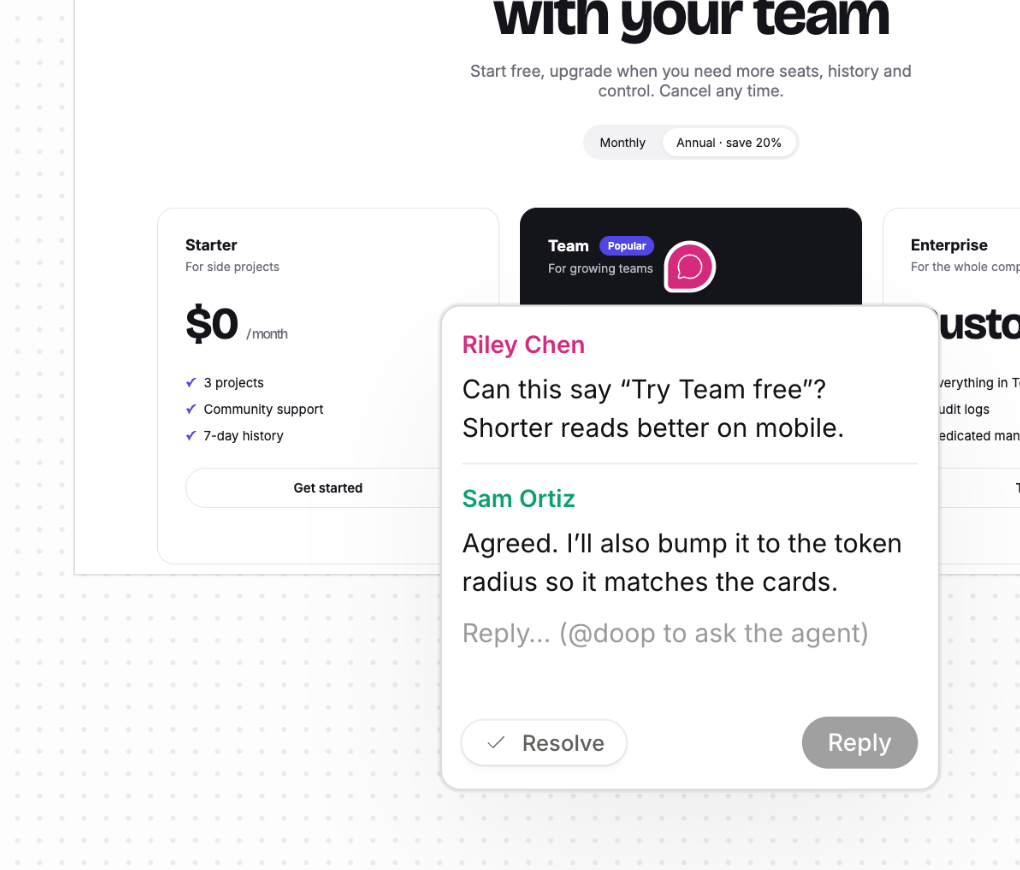
An element comment is anchored to the element itself, not to a point. Doop stamps the element with a stable id the
first time something needs one (a comment, a link, a layer rename), and agents are
told to keep every data-doop-* attribute when they rewrite HTML. So the pin follows the element when
the layout changes, when a frame is resized, or when an agent restyles the whole screen. If the element is
eventually removed, the thread keeps the frame and a snippet of the text it pointed at, listed without a pin.
- Drag a pin to re-anchor the whole thread — onto another element, a frame, or the bare canvas.
- @mention a role (
@doop,@ux,@copy,@brand,@polish) and the Doop Agent picks the thread up as work, replies in the thread when it is done and resolves it. An agent that needs an answer first asks in the thread and waits for your reply. - Agents read comments too. Over MCP,
get_commentslists the open threads on a canvas andreply_to_comment/resolve_commentlet an agent answer and close them — so "address the open feedback on the pricing page" is a complete brief for a connected agent.
Notifications
Comments, replies and mentions are shown live to everyone in the room. For everyone else there is email: the canvas owner, invited people, workspace members and anyone who already wrote in the thread get a digest — a review session is a burst, so a few minutes of comments arrive as one message — with a link that opens the canvas on the exact thread. Turn it off under Settings → Your account → Notifications. For a Slack channel, an issue tracker or an n8n flow, webhooks push the same events as they happen.
Element links
Any element inside any frame has a URL. Select it and choose Copy link to element from its toolbar, or from its row's menu in the Layers panel:
https://doop.design/c/<canvas-id>?frame=<frame-id>&element=<element-id>
Opening it lands on the right page, flies to the frame and selects that element — including an element a script
created after load. Paste one into a chat, an issue, or a brief for an agent: agents are taught that such a link
means the element carrying this data-doop-id in this frame, and to read the frame and find it
before acting on the feedback. A frame link without &element= opens on the frame; a comment's
email link adds &comment= and opens the thread.
Who is here
The presence pill in the top bar shows everyone in the room, people and agents alike. A person is their initials or photo (Settings → Your account → Photo); an agent is its brand mark, with a silver ring while it is working and a one-line status beside its name saying what it is doing. Click a face to follow that person's view. Your display name, shown on your cursor and in the activity feed, is set from the account menu.
Tips
- Review with a Comment link, build with Edit. A stakeholder with a comment link can leave all the feedback they like; the people and agents with edit then act on it.
- Make a workspace before the second canvas. Moving canvases in later works, but a workspace from day one means nobody is ever missing from a canvas.
- Link to elements in briefs. "Make the CTA bigger" is ambiguous; a link to the CTA is not, for a colleague or an agent.