 Written by
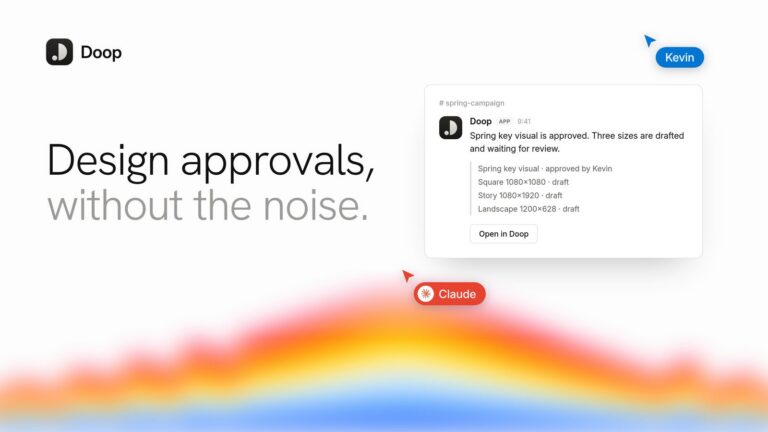
A design approval workflow decides who signs off on a design, which exact version they signed, and what happens next. Most teams already have one. It just lives in Slack threads, email chains and “looks good 👍” reactions that nobody can find a week later. Meanwhile, AI agents now produce drafts faster than anyone can review them, so the old informal approach breaks quickly. This guide shows how to design the stages and roles, which notifications to send (and which to never send), and how to wire it into Slack and Microsoft Teams with Doop.
What a good design approval workflow does
Strip away the tools, and an approval workflow has three jobs:
- Name the decider. One person approves each asset type. Reviewers can advise, but only one name signs.
- Lock the version. The approval belongs to the revision that person looked at. If the design changes, the approval no longer applies.
- Trigger the next step. Approval starts something: a build, a print order, a set of resized variants, or a ticket.
Everything else, such as review rounds, comment threads and deadlines, supports those three jobs.
Design approval stages
Keep the stages few and visible. Four states cover nearly every team:
| State | Meaning | Who acts |
|---|---|---|
| Draft | Work in progress, by a person or an agent | Designer, agents |
| In review | Ready for feedback on a specific version | Reviewers comment, the approver decides |
| Approved | Signed off, in this exact revision | Builders, printers and publishers start |
| Needs review | Changed after approval, so the sign-off is void | The approver looks again |
The last state is the one most tools skip, and it causes the most expensive mistakes. A brochure gets “one small fix” after approval and goes to print with a typo the approver never saw. For that reason, any approval system worth using must reset itself when the design moves.
Who approves what
Write the routing down once. Here is a starting point for a marketing team:
| Asset | Approver | Reviewers | Informed after approval |
|---|---|---|---|
| Campaign key visual | Creative director | Brand manager | Campaign channel |
| Paid social variants | Performance lead | Copywriter | Ads team |
| Print (flyer, poster, POS) | Brand manager | Legal, if claims | Print coordinator |
| Product screens | Product lead | UX, accessibility | Engineering ticket |
| Regulated claims | Legal | Product marketing | Brand manager |
Print adds one more step: the approver signs off on the preflighted proof, not on the draft. Our marketing design automation guide covers that print workflow.
Who to ping, and who to leave alone
Notifications make or break a design approval workflow. Too few, and approvals stall. Too many, and people mute the channel, so approvals stall anyway. These rules keep the signal clean:
- Never notify on drafts. Agent progress and work in progress belong on the canvas, where people can watch live. A channel message per draft trains everyone to ignore the bot.
- Ping the decider by name, and only the decider. A review request goes to the one approver as a direct message or mention, not to a channel.
- One message per decision. When something is approved, post once to the channel that acts on it. Include who approved and links to the exact frames.
- Batch the comments. A review session is a burst. Send a digest a few minutes later instead of one message per comment.
- Answer in threads. Follow-ups go under the original message, so the channel shows decisions, not chatter.
- Send findings to tickets, not channels. Brand and accessibility findings are a to-do list. Therefore they belong in Linear or Jira.
- Escalate once. If an approval is overdue, remind the approver once, then their lead. Never broadcast it.
- Tell the builder when the design moves. If an approved design changes, the person implementing it must know before they ship.
Where Doop fits in the approval loop
Doop is an open-source design canvas where people and AI agents work on the same frames in real time. It covers the parts of approval that chat tools cannot.
Approval is locked to a revision. Mark a frame “ready for dev” and everyone sees the badge with the approver’s name and time. If anyone changes the frame’s HTML or size afterwards, whether a person, an agent or a sync, the badge flips to “Needs review” and names the previous approver. As a result, an approval never silently covers a design that moved.
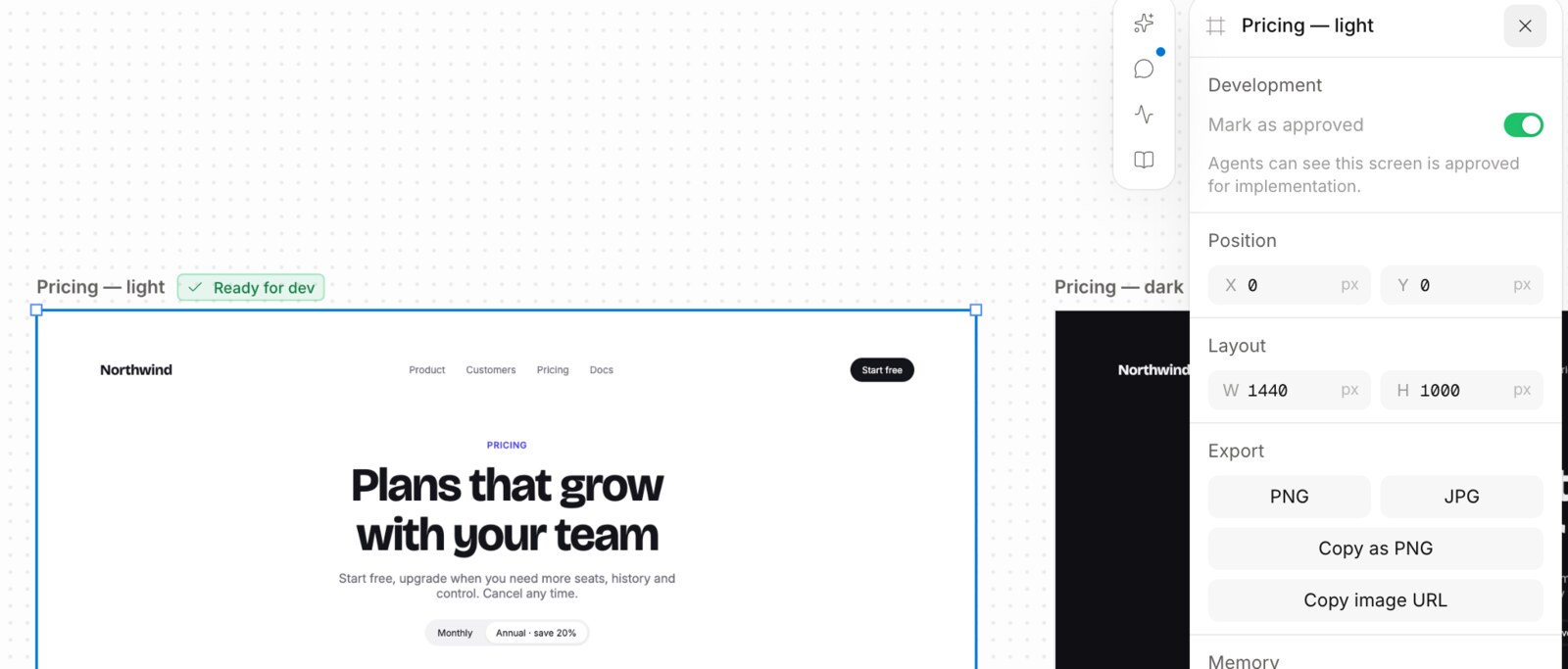
Sign-off stays human. Agents can mark a frame approved only when a person asks them to, and the record reads “Approved by Kevin via Claude Code”. Automation runs cannot approve anything at all, so a workflow never signs off its own drafts.
Feedback stays on the design. Comments pin to the exact element. Mention a colleague and they get an email at once, while ordinary comment activity arrives as a digest. Mention an agent role, such as @brand or @copy, and it picks the thread up as work.
Approval starts the next step. An approval-triggered automation watches a canvas. When someone approves a frame, it can draft every size, translate the design, open a Linear ticket, and post to Slack. The originals stay untouched, and the new drafts start their own approval cycle.
Set up design approvals in Slack
Doop has a native Slack app, so most of this takes minutes.
- Install the app. In Doop, open Integrations, choose Slack, and approve the app for your workspace. Then invite
@Doopto the channels it should post in. - Take briefs from Slack. Anyone can mention
@Doopwith a brief, or run/doop. Doop creates a canvas, runs its design agent, and posts the result back in the thread. - Announce approvals once. Create an automation with the approval trigger on your campaign canvas. Add a Slack step with the channel ID and a short message. Each post lists the approved designs, who approved them, and links to the frames.
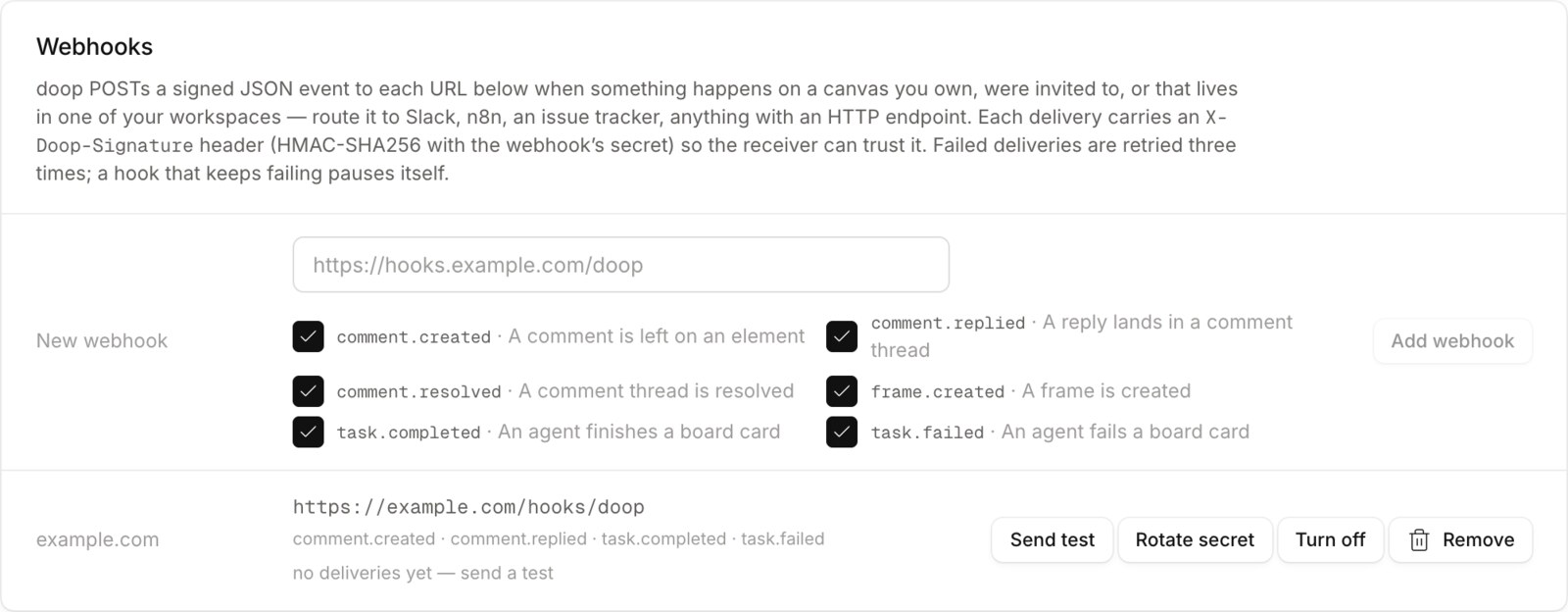
- Route comments to the right place. Add a webhook under Settings and pick only the events you need, such as
comment.created. Point it at an n8n or Zapier flow that posts into the matching thread, or skip it and rely on the email digest.
For intake, Slack Workflow Builder pairs well with this. A simple form collects the asset type, deadline and approver, and then posts a structured brief that mentions @Doop.
Set up design approvals in Microsoft Teams
Doop does not have a native Teams app. However, Teams accepts messages from webhooks through its Workflows app, which replaced the old Office 365 connectors. That makes two clean setups possible.
Comments and agent results in a Teams channel
- In Teams, create a workflow from the “Post to a channel when a webhook request is received” template, and copy its URL.
- In Doop, add a webhook for the events you want, such as
comment.createdandtask.completed. - Put a small relay between them: an n8n flow, a serverless function, or an Executor app (see the pipeline in design automation with Claude Code and Codex). The relay checks Doop’s signature and reshapes the event into an Adaptive Card.
Doop signs every delivery with an HMAC-SHA256 of the timestamp and the raw body, and comment events carry a deep link to their thread. The relay therefore stays tiny: verify, reshape and forward.
Approvals in a Teams channel
Webhooks cover comments, new frames and agent tasks, but not approvals. For approvals, a short scheduled script does the job with the doop CLI. It lists the approved frames, compares them with the last run, and posts anything new:
#!/usr/bin/env bash
# Run every 10 minutes from cron. Needs DOOP_API_KEY and TEAMS_WEBHOOK_URL.
set -euo pipefail
CANVAS="your-canvas-id"
STATE="$HOME/.doop-approved-$CANVAS.txt"
touch "$STATE"

doop frames --ready --json --canvas "$CANVAS" \
  | jq -r '.data.frames[] | "\(.id)\t\(.name)"' | sort > /tmp/ready.txt

comm -13 "$STATE" /tmp/ready.txt | while IFS=$'\t' read -r id name; do
  jq -n --arg name "$name" --arg url "https://doop.design/c/$CANVAS?frame=$id" '{
    type: "message",
    attachments: [{
      contentType: "application/vnd.microsoft.card.adaptive",
      content: {
        type: "AdaptiveCard", version: "1.4",
        body: [{ type: "TextBlock", weight: "Bolder", text: "Approved: \($name)" }],
        actions: [{ type: "Action.OpenUrl", title: "Open in Doop", url: $url }]
      }
    }]
  }' | curl -s -X POST -H 'Content-Type: application/json' -d @- "$TEAMS_WEBHOOK_URL"
done

mv /tmp/ready.txt "$STATE"
If your organization needs a formal record, the Teams Approvals app can hold the legal or compliance sign-off, with a link back to the frame. Keep the design approval itself in Doop, though, because only Doop knows when the design changes afterwards.
Design approval tools compared
- Ziflow is a dedicated proofing tool with review stages, version comparison and native Slack and Teams integrations, including role-based alerts.
- Filestage runs review rounds for files and videos, and it connects to Slack and Teams for notifications.
- Frame.io is the standard for video review, with frame-accurate comments.
- Teams Approvals records formal sign-offs inside Microsoft 365, but it knows nothing about the design itself.
- Doop keeps approval on the design, resets it when the design moves, and lets AI agents produce and fix work without ever approving it.
Proofing tools are strong for final files from other tools. Doop is the better fit when the design itself is still being produced, especially by agents, because the approval and the work live in the same place. For the handoff that follows sign-off, see the design handoff process guide, and for the full loop, our design automation guide.
Frequently asked questions
What is a design approval workflow?
It is the process that names who signs off on a design, records which version they approved, and starts the next step, such as a build, a print order or a ticket.
How do you get design approvals in Slack?
Use an app that posts approval events with links to the exact frames. In Doop, an approval-triggered automation posts one Slack message per approval with the approver’s name and frame links.
Can Microsoft Teams receive design approval notifications?
Yes. Create a Teams workflow with a webhook trigger, then post Adaptive Cards to it from a relay or a scheduled script that reads approved frames with the doop CLI.
Should AI agents approve designs?
No. Agents can review, fix and flag problems, but sign-off is accountability. In Doop, automation runs cannot approve, and agents approve only when a person asks, in that person’s name.