 Written by
If you want to migrate from Paper to Doop, the good news is that both tools speak the same language. Paper and Doop are both canvases built on HTML and CSS, and both give AI agents full read and write access over MCP. So the move is not a lossy export to a proprietary format. It is one agent reading your design out of Paper and writing it straight into a Doop canvas, tokens and all.
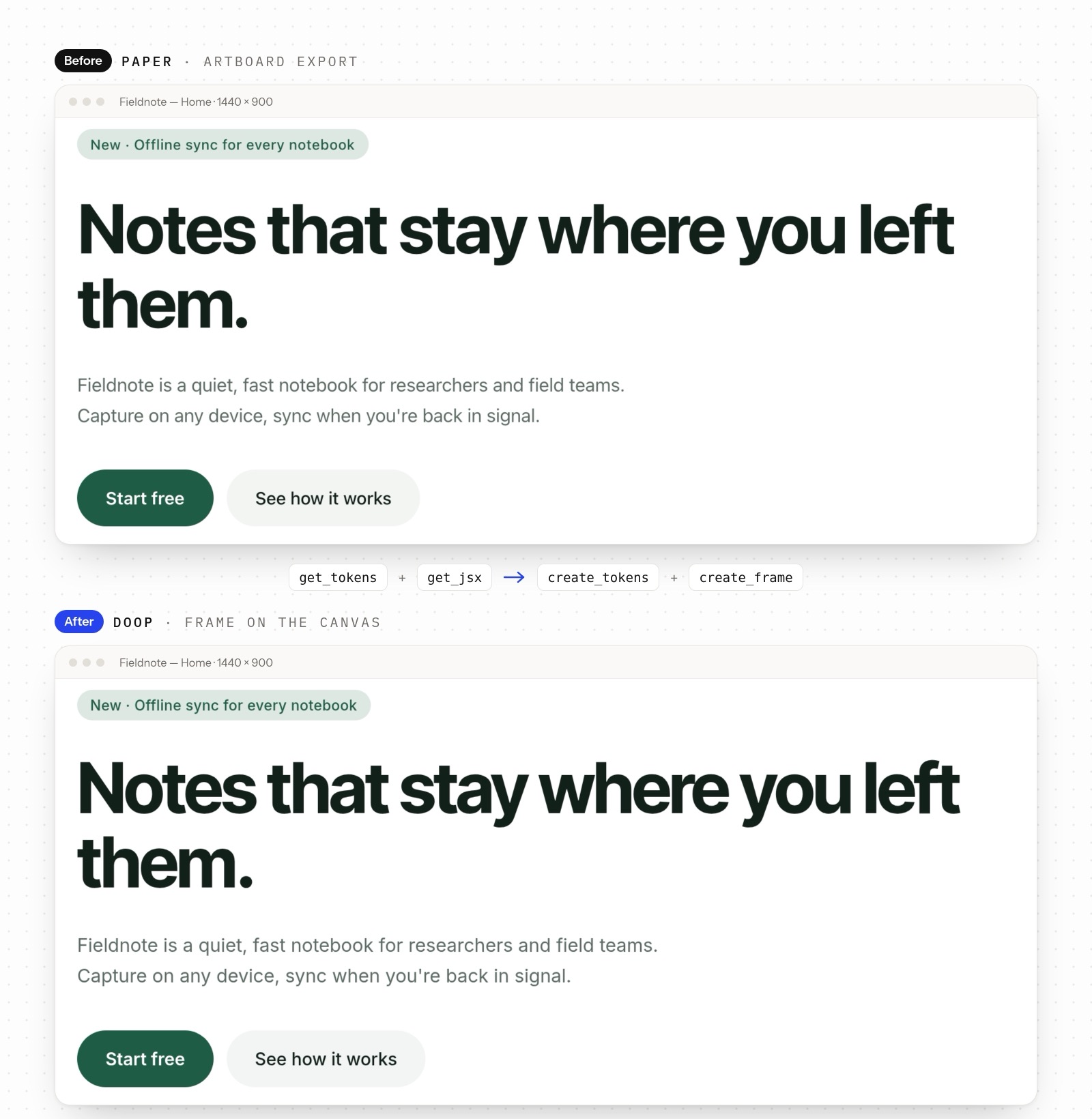
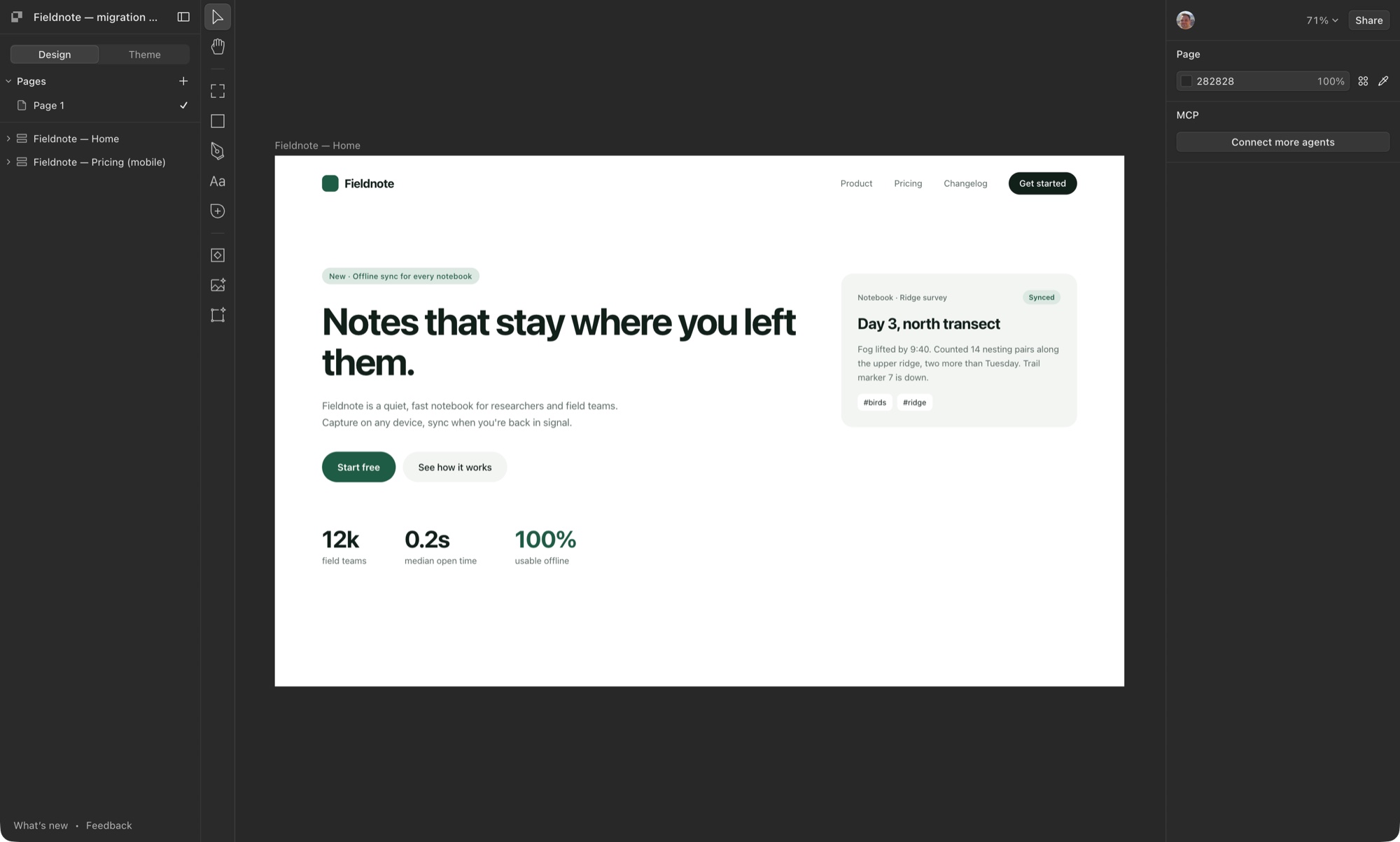
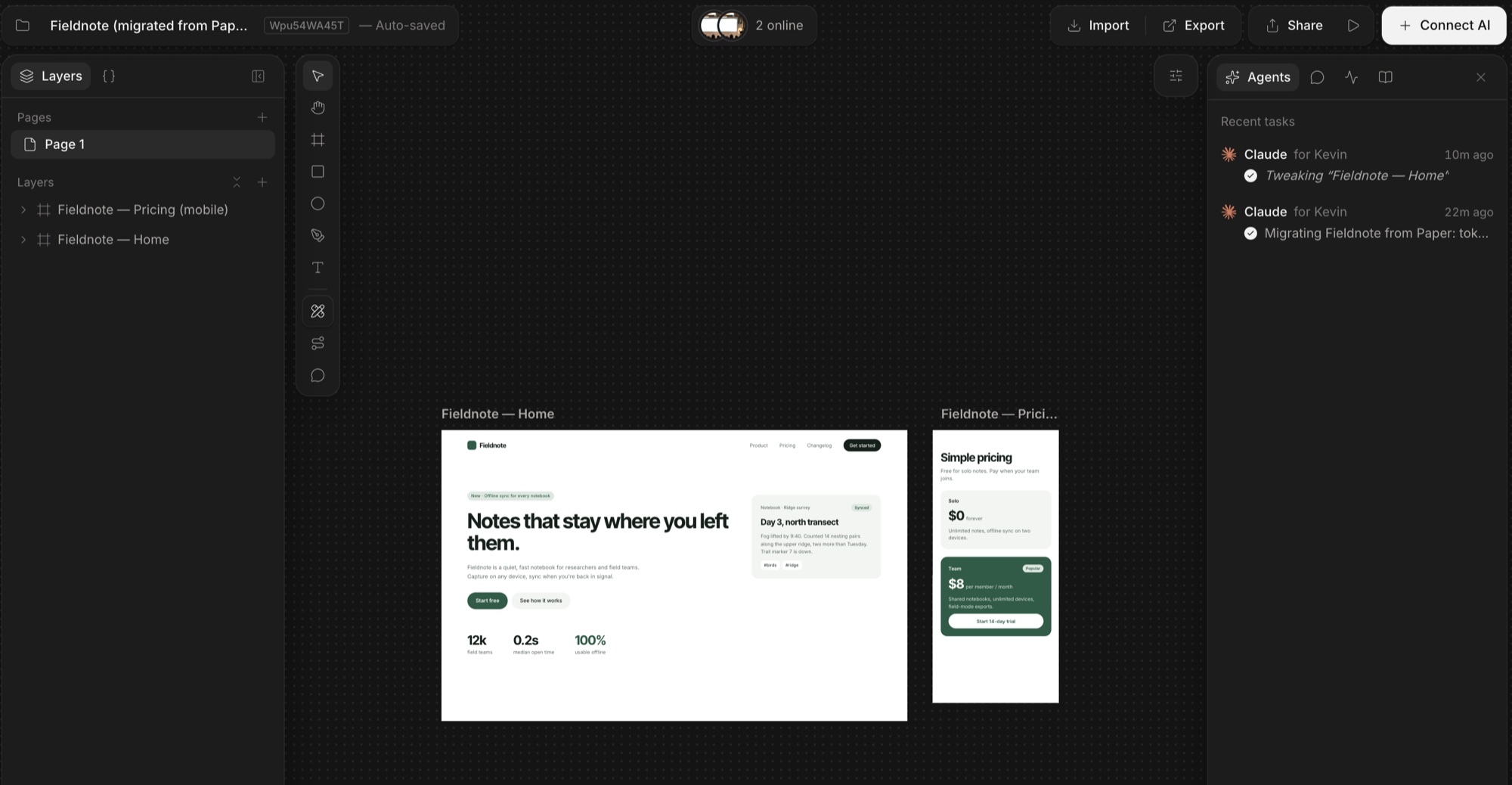
We ran the whole process end to end before writing this guide. Claude Code moved a two-artboard Paper file with 16 design tokens onto a Doop canvas in a single session, and the result matched the original. Below are the exact steps and the prompt we used.
Why teams move from Paper to Doop
Paper is a great agent-native canvas, and if you design alone it may be all you need. Teams usually start looking elsewhere for one of four reasons:
- Multiplayer. A Doop canvas lives in the browser. Teammates and several agents work on it at the same time, watch frames stream in live, and leave comments that flow back to the agent as tasks.
- Any agent, no agent seats. Claude Code, Codex, Cursor and any other MCP client connect to the same canvas. Everyone brings their own agent subscription, so agents never cost a seat.
- Real material in, real code out. Doop imports websites, GitHub repos, Figma, Canva and PSD files, and it can open pull requests from a design.
- Open source. Doop is AGPL-licensed on GitHub, so you can self-host the Community edition for free.
For a broader comparison, see our guide to the best Paper.design alternatives.
How a Paper to Doop migration works
There is no file to export and nothing to convert by hand. Paper’s MCP server exposes everything an agent needs to read a design: get_tokens returns your design tokens, get_jsx returns each artboard as markup with inline styles, and get_screenshot shows the agent what it should look like.
On the other side, Doop’s MCP server writes the same things back. Its create_tokens tool takes the same payload as Paper’s, and a Doop frame is simply a full HTML document. As a result, an agent connected to both servers can copy a whole file across in one session.
Step 1: Connect Claude Code to both MCP servers
First, install Paper’s agent plugin and open the file you want to move in Paper Desktop:
claude plugin marketplace add paper-design/agent-plugins
claude plugin install paper-desktop@paper
Next, add Doop. It uses OAuth, so the first call opens a browser window to sign in:
claude mcp add --transport http doop https://doop.design/mcpFinally, run /mcp in Claude Code and check that both paper and doop show as connected. Any other MCP-capable agent works the same way; for more on the setup, see our design MCP for Claude Code guide.
Step 2: Take stock of the Paper file
Before moving anything, ask the agent for an inventory. Paper’s get_basic_info lists every page, artboard, font family and token in the file. That list becomes your checklist. In addition, it tells you how to map things over: one Paper file becomes one Doop canvas, and each Paper page becomes a Doop page.
Step 3: Move the design tokens first
Tokens go first, because every artboard references them. In Paper they are CSS variables such as --color-primary, and Doop uses exactly the same model. Each token has a type, a name, a value and an optional description, and frames read it as var(--color-primary).
In our test, the agent called get_tokens on the Paper file and passed the result straight into Doop’s create_tokens. All 16 tokens (six colours, four spacing steps, two radii, two font families and two font sizes) landed on the first try, descriptions included. Once they are in Doop, you can also give any token a dark or brand theme value.
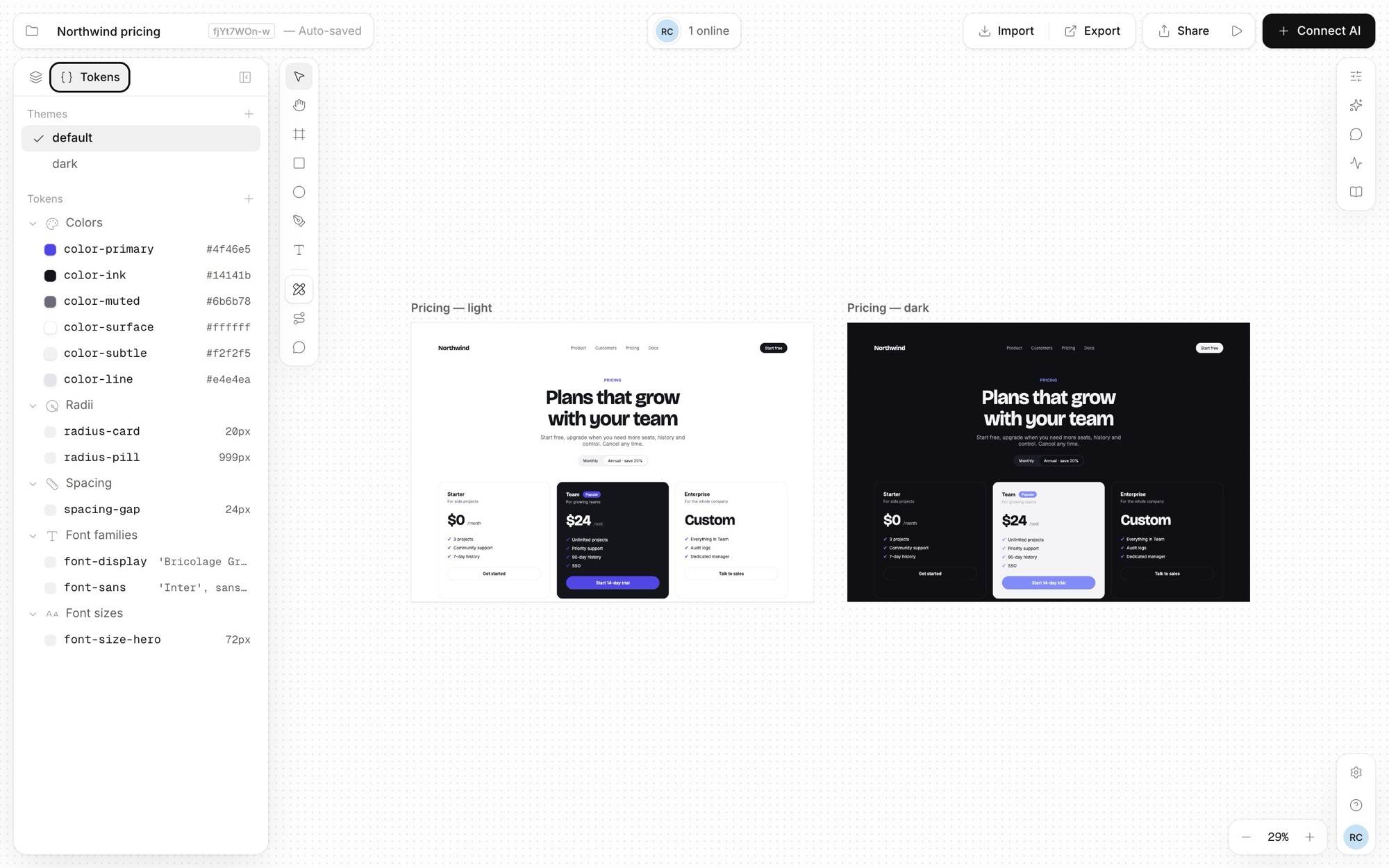
Read the Doop design tokens docs for theming, aliases and exporting tokens as CSS or Tailwind.
Step 4: Move each artboard as a frame
Next, the agent moves the artboards one at a time. For each one, it calls Paper’s get_jsx with node IDs turned off, converts the inline styles to plain HTML and CSS, and creates a Doop frame at the same width and height. Because the markup keeps its var(--token) references, the new frame picks up the tokens you migrated in step 3. If an artboard uses photos, the agent uploads each one to Doop with upload_asset as well.
Then the agent screenshots both versions and compares them. Paper’s get_screenshot and Doop’s get_frame_screenshot make this a quick loop, so every frame is checked visually before the agent moves on to the next one.
The prompt we used
Paste this into Claude Code once both servers are connected, and adjust the file name:
Migrate my Paper file "Fieldnote" to a new Doop canvas.
1. Inventory every page, artboard and token in the Paper file.
2. Copy all design tokens to Doop with create_tokens, unchanged.
3. For each artboard, read it with get_jsx (no node IDs) and create
   a Doop frame at the same size with equivalent HTML and CSS.
   Keep var(--token) references and bind text to the font tokens.
4. Screenshot the Paper artboard and the Doop frame, compare them,
   and polish each frame before moving to the next one.
5. Give me a summary of what was migrated.
After the move: bring in your team
Once the agent finishes, open the canvas and share the link. Teammates can comment on any element, and every connected agent, whether that is Claude Code, Codex or Cursor, sees the same frames and the same tokens. From here, the canvas works like any other Doop canvas: queue work for the built-in Doop Agent, wire screens into a clickable prototype, or open a pull request from an approved frame.
Already shipped? Import it instead
Sometimes the design already lives somewhere other than Paper. If it is on a public website, Doop’s website import captures it as editable frames in seconds. Similarly, if it lives in code, GitHub import pulls your design system and screens straight from the repo. The Doop import docs cover both, plus Figma, Canva and PSD files.
Frequently asked questions
Do I need to export files from Paper? No. When you migrate from Paper to Doop this way, the agent reads straight from Paper over MCP and writes straight into Doop, so there is no export step.
Do I need Claude Code? No. Any agent that supports MCP can do it, including Codex and Cursor, as long as it can connect to both servers at once.
Will my design tokens keep their names? Yes. Both tools use CSS custom property names and the same token types, so --color-primary in Paper stays --color-primary in Doop.
What does Doop cost? Hosted Doop is free to start, with an Organization plan at $20 per editor per month. You can also self-host the open source Community edition for free. See Doop pricing for the details.
Start your move
To migrate from Paper to Doop, you need about five minutes of setup and one prompt. Connect both MCP servers, move your tokens first, then let the agent rebuild and check each artboard. When it is done, open your new Doop canvas, share the link with your team, and keep designing together.