 Written by
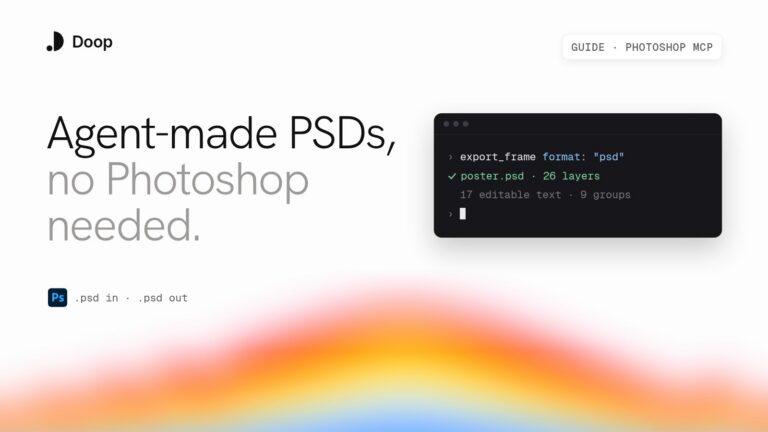
A Photoshop MCP lets an AI agent like Claude Code work with Photoshop through the Model Context Protocol. There are more of them than most people expect. Adobe has an official connector, and a handful of open-source servers drive the Photoshop app on your computer. Design canvases like Doop go a third way and write layered PSDs without Photoshop at all. This guide shows how each one works under the hood, how to set it up, which tools it gives your agent, and where it runs out of road.
How a Photoshop MCP works
An MCP server is a translator. Your agent sees a list of tools, such as “create a text layer” or “remove the background,” and calls them with arguments. The server turns each call into something Photoshop understands and sends back the result. The interesting question is where that “something” runs, because it decides what you need installed and what the agent can actually do.
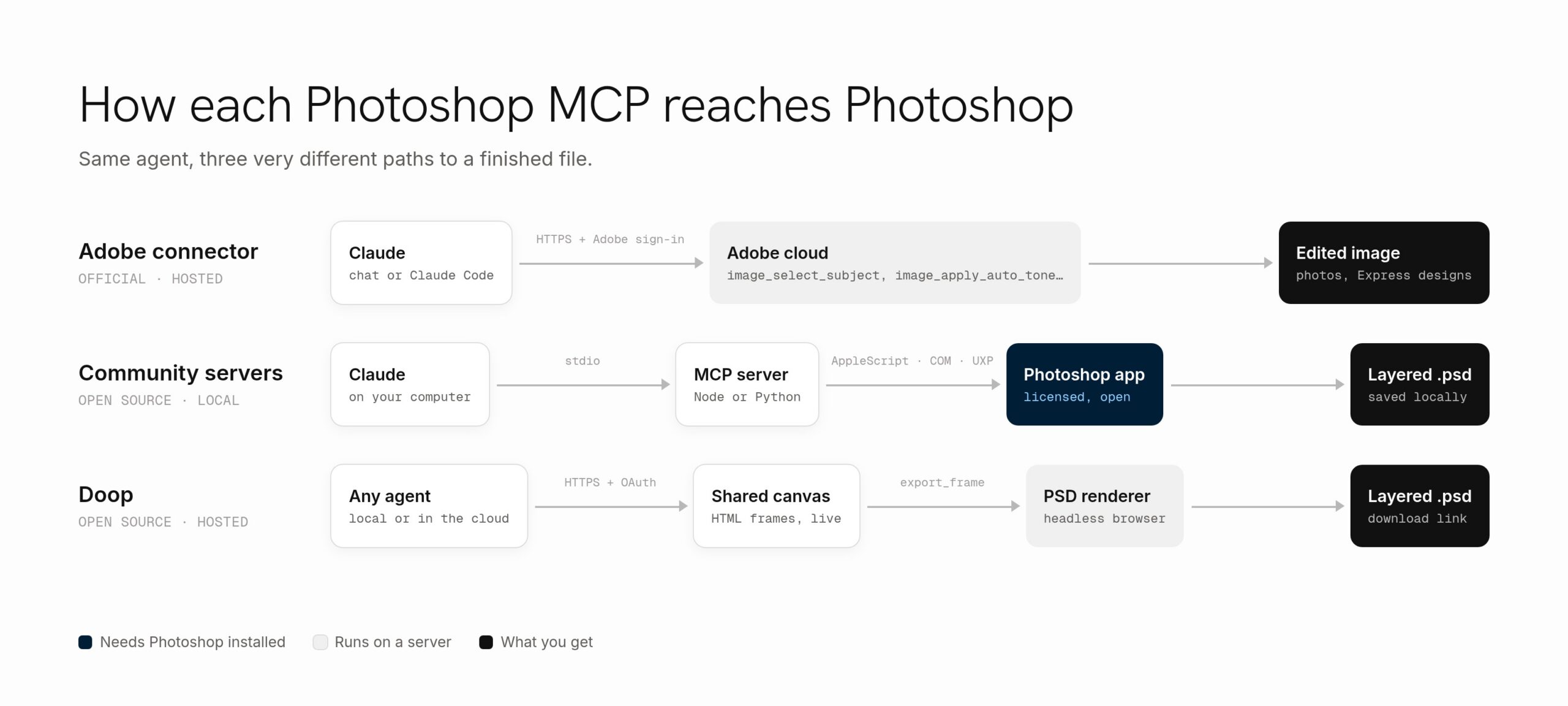
In short, there are three routes. Adobe’s connector calls Adobe’s cloud services. Community servers script a copy of Photoshop running next to the agent. Doop skips Photoshop: the agent designs on a canvas, and Doop’s server writes the PSD file itself. The sections below walk through each one.
Option 1: Adobe’s official connector
Adobe and Anthropic launched the Adobe for creativity connector on April 28, 2026. Adobe has since renamed it simply “Adobe” and added Acrobat tools. It is the only official Photoshop MCP, and a hosted one at adobe-creativity.adobe.io/mcp, so nothing runs on your machine.
Setup
According to Adobe’s help page, the connector ships as a plugin in Claude on the web, in the desktop app and in Claude Code. In the Claude apps, open Customize, add the Adobe plugin, then connect it on the Connectors tab. As a remote server, it also takes the standard Claude Code form:
claude mcp add --transport http adobe https://adobe-creativity.adobe.io/mcpYou can continue as a guest. However, signing in with a free Adobe account unlocks more tools and keeps your work across sessions.
What the agent gets
The tools are task-shaped rather than app-shaped. The mcp.film directory lists names such as image_select_subject, image_apply_auto_tone, image_apply_adjustments, image_apply_preset, image_crop_and_resize and video_create_quick_cut. Adobe’s own list of workflows covers color and lighting fixes, Lightroom presets, removing or blurring backgrounds, cropping and expanding images, and importing and rendering Photoshop files. A typical request looks like Adobe’s own example: upload a batch of product photos and apply the same crop, lighting and preset to all of them.
Where it stops
The connector edits images; it does not build documents. Nothing in Adobe’s workflow list covers creating layers or editing them one by one, and an independent test by MindStudio found no layer or mask control. Adobe also notes that it is not optimized for enterprise use and does not support EDU accounts. In other words, it is excellent for photo work and the wrong tool for “build me a layered poster.”
Option 2: Community Photoshop MCP servers
The open-source Photoshop MCP servers take the opposite approach. They run on your computer and remote-control the real Photoshop app, so the agent gets almost everything Photoshop’s scripting engine can do. The trade-off is that Photoshop must be installed, licensed and open while the agent works.
alisaitteke/photoshop-mcp: the most complete
photoshop-mcp by Ali Sait Teke is the most active project, with about 800 GitHub stars as of November 2026. It is MIT-licensed, works on macOS and Windows, and supports Photoshop versions back to 2012. You need Node.js 18 or later. Setup in Claude Code is one line:
claude mcp add photoshop -- npx -y @alisaitteke/photoshop-mcpUnder the hood, the server sends ExtendScript (Photoshop’s built-in JavaScript) to the app. On macOS it goes through AppleScript, and on Windows through COM automation. An optional UXP plugin adds features only reachable from inside Photoshop, such as Neural Filters. Its architecture notes stress that everything stays on your machine.
The agent gets 128 tools. For example, there are atomic ones like photoshop_create_document, photoshop_create_text_layer, photoshop_create_layer_mask, photoshop_adjust_curves and photoshop_export_artboards. Generative ones include photoshop_generative_fill and photoshop_generative_expand, which need an Adobe account signed into Photoshop. On top sit 17 one-step recipes, such as background removal with an editable mask or splitting a wide banner into an Instagram carousel. Each recipe lands as a single undo step. In addition, when a tool fails, the server returns a structured error with a suggested next tool, so the agent can correct itself.
We tried it: a Photoshop MCP session in Claude Code
To see how it behaves, we installed Photoshop 2026 on a Mac, opened a banner PSD, and ran a one-off Claude Code session with the server connected. The prompt was plain: inspect the layers, give only the photo a subtle warm grade, leave everything else alone, and export a JPG. Here is what the agent actually called, in order:
photoshop_get_state            → error: "Photoshop info not available"
                                 suggested_next_tool: photoshop_get_state
photoshop_ping                 → Successfully connected to Photoshop
photoshop_get_layers           → 11 layers: div.copy, Button, Body, Headline, Photo, Background…
photoshop_select_layer_by_name → "Photo"
photoshop_apply_photo_filter   → Photo Filter adjustment layer created (density 22%)
photoshop_create_clipping_mask → clipped "Photo Filter 1" to Photo
photoshop_export_as            → JPEG, quality 90
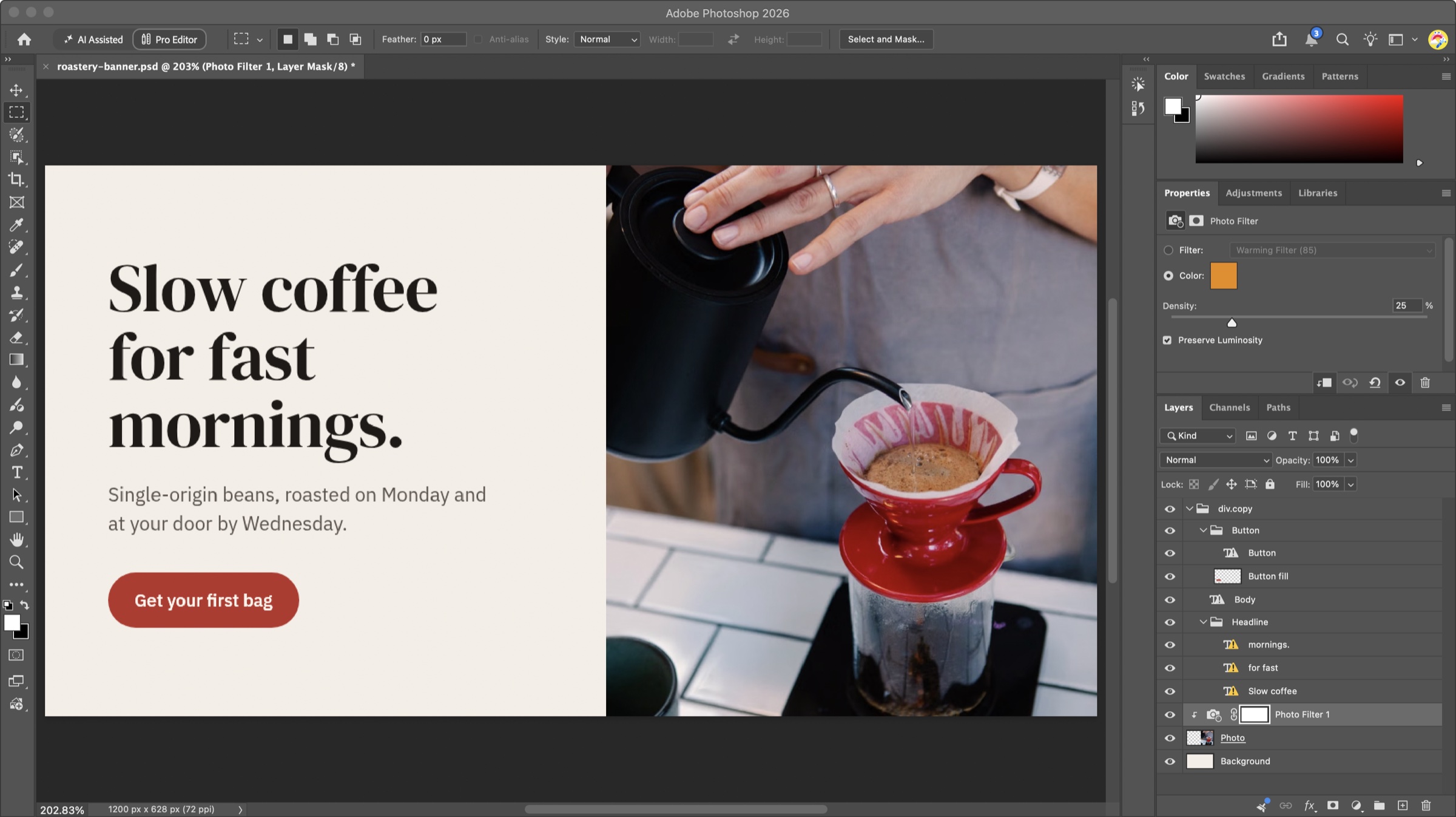
The whole run took 28 seconds. Two details stood out. First, the opening call failed because the server had not found Photoshop yet, and the structured error steered the agent to ping and recover on its own. Second, the agent chose a non-destructive route: instead of changing the photo’s pixels, it added a Photo Filter adjustment layer and clipped it to the photo, exactly what a careful retoucher would do. One small slip: the tool reported a density of 22%, while Photoshop’s panel shows 25%.
The project also ships its own chat window (npx -p @alisaitteke/photoshop-mcp ui) that can reuse a Claude Code login. Note that it collects anonymous usage analytics by default, which you can switch off.
photoshop-python-api-mcp-server: Windows and raw scripts
photoshop-python-api-mcp-server (MIT, about 350 stars) is a Python server for Windows only, because it talks to Photoshop over COM. It is tested with Photoshop CC2017 through 2024, and you pick the version with a PS_VERSION setting. Its tool set is smaller: documents, text and color layers, session info, and resources such as photoshop://document/layers. Its standout is photoshop_execute_jsx, an escape hatch that runs any Photoshop script the agent writes. That makes it powerful and also risky, since a script can change or destroy the open document.
adb-mcp: one bridge for five Adobe apps
adb-mcp (MIT, about 740 stars) is a proof of concept that reaches Photoshop, Premiere, InDesign, After Effects and Illustrator. Its chain has four links: the MCP server talks to a Node proxy, which talks to a UXP plugin running inside Photoshop. The proxy exists because UXP plugins can open socket connections but cannot listen for them. Setup takes a while: install the Python server, run the proxy, load the plugin through Adobe’s UXP Developer Tool, and click Connect inside Photoshop. The README says plainly that Adobe does not endorse or support it, and the repository was last updated in July 2026.
Where community Photoshop MCP servers stop
These servers can build a layered PSD from scratch, one tool call at a time, and they offer far deeper control than the official connector. However, every one of them needs a licensed Photoshop open on the same computer as the agent. That rules out agents running in the cloud or in CI, scheduled jobs while your laptop sleeps, and teammates without a Creative Cloud seat. Building a layout also takes dozens of individual calls, such as create layer, set font, move and resize, and nobody else can see the work until you share the file.
Option 3: Doop, layered PSDs without Photoshop
Doop is an open-source multiplayer design canvas with a built-in MCP server. It is not a Photoshop MCP in the usual sense, because it never talks to Photoshop. Instead, agents design in HTML on a shared canvas, which they are fluent in, and Doop turns any frame into a layered PSD. The export renders in a headless browser on Doop’s server, so neither you nor the agent needs Photoshop installed. We ran the whole flow for this post; the files below are the real output.
1. Connect Doop to your agent
Doop’s MCP server is remote, so there is nothing to install. In Claude Code, run:
claude mcp add --transport http doop https://doop.design/mcpA browser window opens to sign in. Codex, Cursor and Claude Desktop can connect too; our design MCP for Claude Code page has the details.
2. Ask for the design
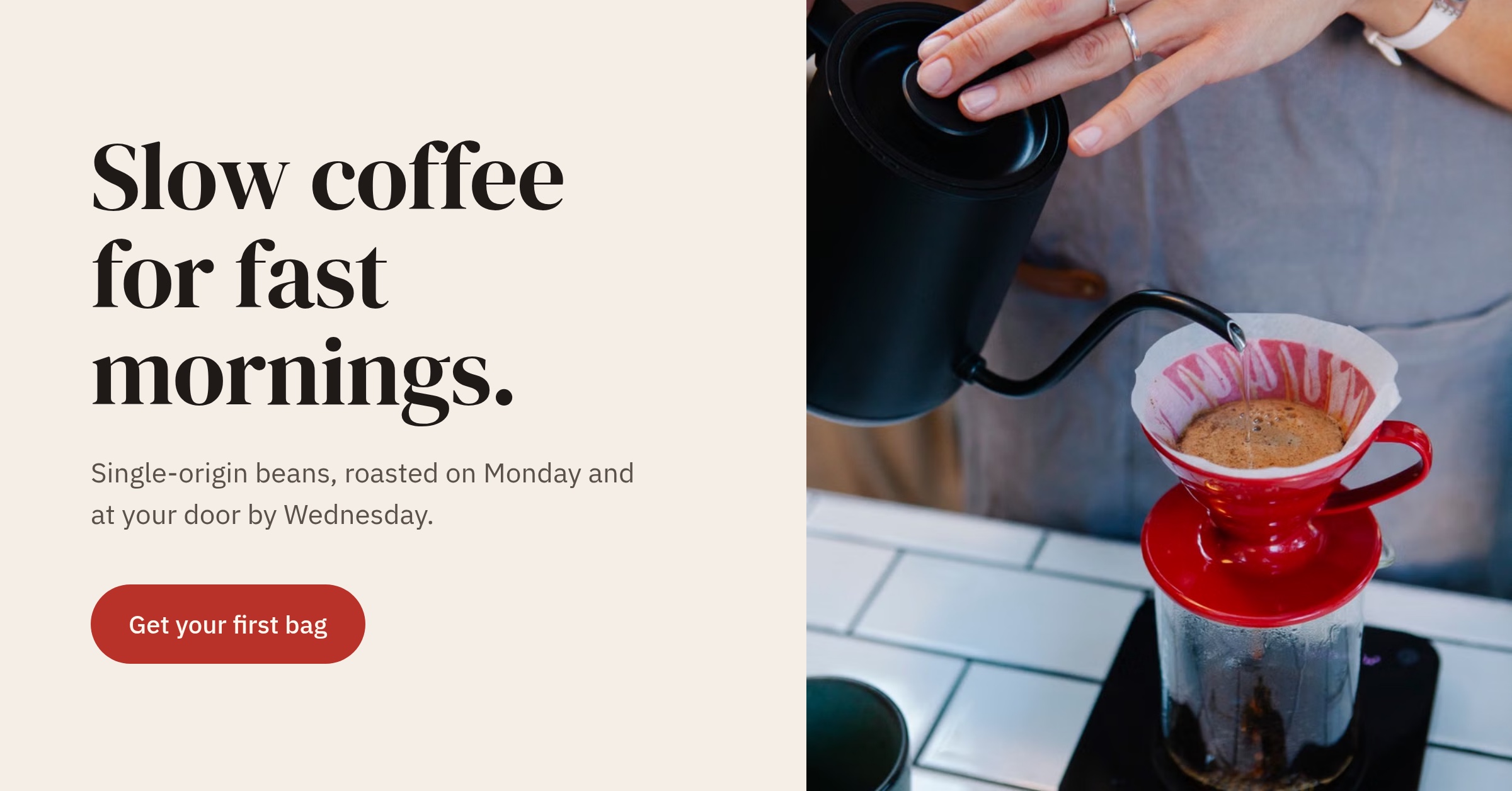
Next, describe what you want, just as you would brief a designer. We asked Claude for a 1200 × 628 web banner for a small coffee roaster, built around a real stock photo. The agent created a canvas, picked the photo with Doop’s image search, wrote the layout, then checked its own work with a screenshot. Anyone you share the canvas with can watch it build live and leave comments on any element.
3. Export it as a PSD
Finally, ask the agent to export the frame as a PSD. Under the hood it calls the export_frame tool with format: "psd" and gets back a download link. You can also right-click any frame on the canvas and choose Download PSD.
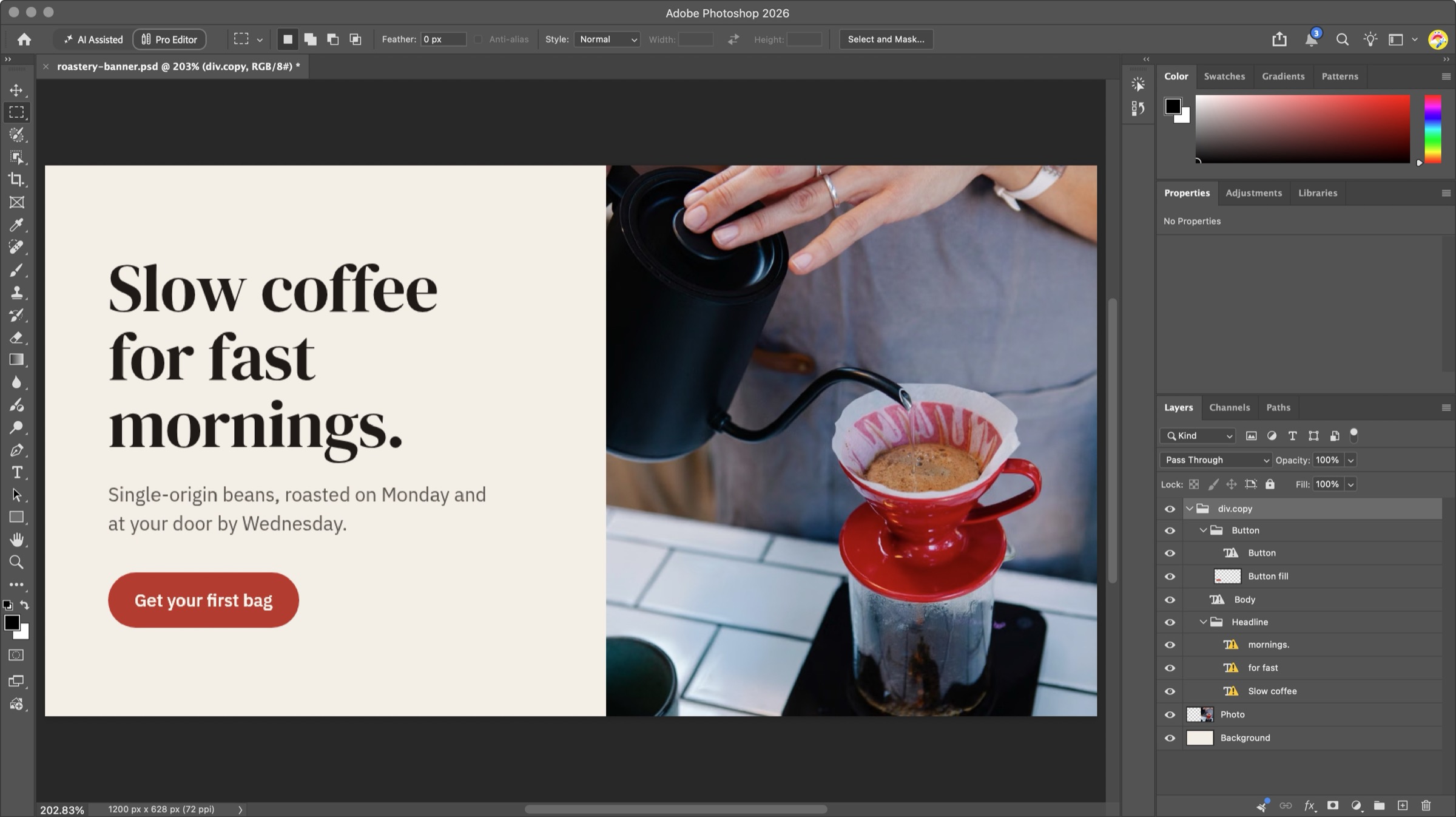
We opened the file in Photoshop 2026. The banner came out as 8 layers in 3 groups: the background, the photo as its own pixel layer, and 5 text layers for the headline lines, the body copy and the button label. Each text layer carries real Photoshop type data, including font, size, color, leading and tracking. Groups follow the design’s structure, and the file includes a pixel-perfect composite, so it looks exactly like the canvas the moment it opens.
Going the other way: import a PSD
The bridge works in both directions. The import_psd tool takes a public link to a .psd file (up to 400 MB) and turns it into editable frames on a canvas. Each artboard becomes its own frame, and text layers become live text. Groups, opacity, blend modes and masks are preserved. For a file on your own computer, use Import in the canvas toolbar instead. As a result, an agent can pick up a designer’s PSD handoff, build variants or new sizes, and send layered files back.
Limits worth knowing
The export trades some native Photoshop features for accuracy. First, shadows and other CSS effects are baked into each layer’s pixels rather than written as editable layer styles. Second, very complex frames past 240 layers have their deepest groups flattened. On import, curves, levels, glows and bevels come through as close approximations and are listed as warnings, and large-document PSB files are not supported. Third, as our screenshot shows, Photoshop may flag a web font as missing when its installed name differs from the one Doop writes; you map it once and the text becomes editable. Finally, PSD export and import run on hosted Doop at doop.design.
Photoshop MCP options compared
| Adobe connector | photoshop-mcp | photoshop-python-api | adb-mcp | Doop | |
|---|---|---|---|---|---|
| Made by | Adobe | Community | Community | Community | Doop |
| Runs | Adobe’s cloud | Your computer | Your computer | Your computer | Doop’s server |
| Needs Photoshop | No | Yes, open | Yes, open | Yes, open | No |
| Platforms | Any | macOS, Windows | Windows | macOS, Windows | Any |
| Layer control | No | Yes | Yes | Yes | Yes, via the design |
| Outputs a layered PSD | No | Yes | Yes | Yes | Yes |
| Works for cloud agents | Yes | No | No | No | Yes |
| Best at | Photo edits | Retouching, recipes | Custom scripts | Multi-app experiments | Designing layouts |
Using them together
These tools are not either-or, and this post is the proof: the banner the Photoshop MCP graded above is the same file Doop exported. An agent designed the layout in Doop, where the team could review it on the canvas. We opened the PSD in Photoshop, and a second agent session used a local Photoshop MCP for the part only Photoshop does well, a non-destructive color grade. From there it could just as well run generative fill or export social sizes. Likewise, product photos can go through Adobe’s connector for cleanup before they land in the design.
So the short version is: Adobe’s connector for photos, a community Photoshop MCP for scripting your own documents, and Doop when you want an agent to design the thing and hand you layers. For a wider look at design tools for agents, see our roundup of the best design MCPs for Claude Code and our guide to the Canva MCP.
Frequently asked questions
Is there an official Photoshop MCP?
Yes. Adobe’s connector (now called “Adobe”) is official and works in Claude and Claude Code. It focuses on photo edits and Express templates rather than layer-by-layer document work.
Which Photoshop MCP gives the most control?
A community server that drives the app, such as alisaitteke/photoshop-mcp with its 128 tools. Because it scripts the real Photoshop, it can reach layers, masks, adjustments and generative fill. However, Photoshop must be running on the same computer.
Does Doop need Photoshop installed?
No. Doop renders the design in a headless browser on its server and writes the PSD itself. You only need Photoshop, or another PSD editor, to open the file afterwards.
Is the text in an exported PSD editable?
Yes. Text layers carry real Photoshop text data, including font, size, color, leading, tracking and alignment, alongside a pixel-exact preview. Install the fonts on the computer that opens the file; if Photoshop still flags one, map it once and the layer becomes editable.
Try it on your next design
Connect Doop to Claude Code, Codex or Cursor with one command, ask for a design, and ask for the PSD. Doop is open source, and the code is on GitHub.