 Written by
The Meta Ads CLI is a small command line tool from Meta that wraps the Marketing API. Once it is installed, one command lists your campaigns and another pulls last week’s performance as JSON. That makes the Meta Ads CLI the easiest way to give a coding agent like Claude Code or Codex access to your ad account. This guide walks through the full setup. You will install the CLI, get an access token, store it safely, and configure both agents to run it without a human in the loop.
We use this setup at Doop for the automation loop described in Automate Meta Ads with a Claude Agent, the Meta CLI and Doop. This post covers only the plumbing. Expect about twenty minutes if you already have a Meta developer account.
What you need before you start
- A Meta Business account with at least one ad account you can manage.
- A Meta for Developers app with the Marketing API product added. If you have never created one, the linked page covers it.
- Python 3.12 or newer on your machine.
- Claude Code, Codex, or both installed.
Step 1: Install the Meta Ads CLI
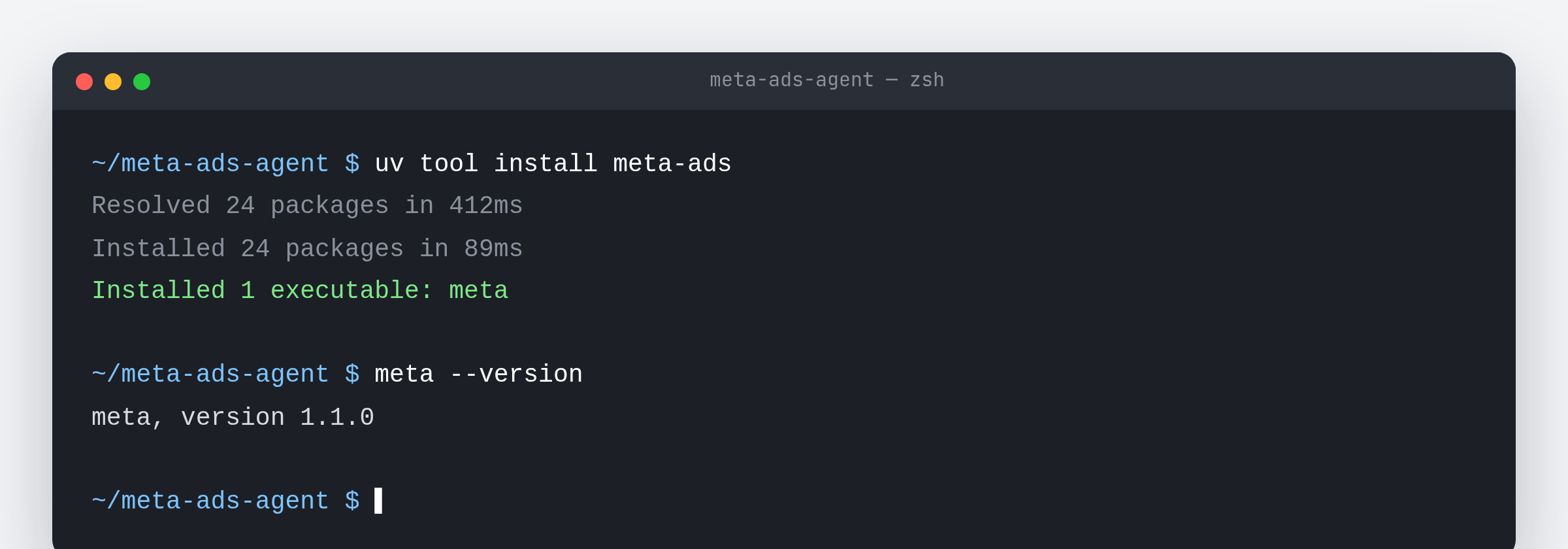
The CLI ships on PyPI as the meta-ads package. We recommend installing it as an isolated tool with uv, which keeps its dependencies out of your project environments:
uv tool install meta-ads
Plain pip works too:
pip install meta-ads
Either way you get a meta command on your path. Confirm it:
meta --version
# meta, version 1.1.0
The package depends on Meta’s official facebook-business SDK, so the commands map one to one onto Marketing API objects. Nothing is reverse engineered. You can check the current version and command list on PyPI.
Step 2: Get an access token
The CLI reads two environment variables, ACCESS_TOKEN and AD_ACCOUNT_ID. The token is the part people get wrong, so it deserves detail.
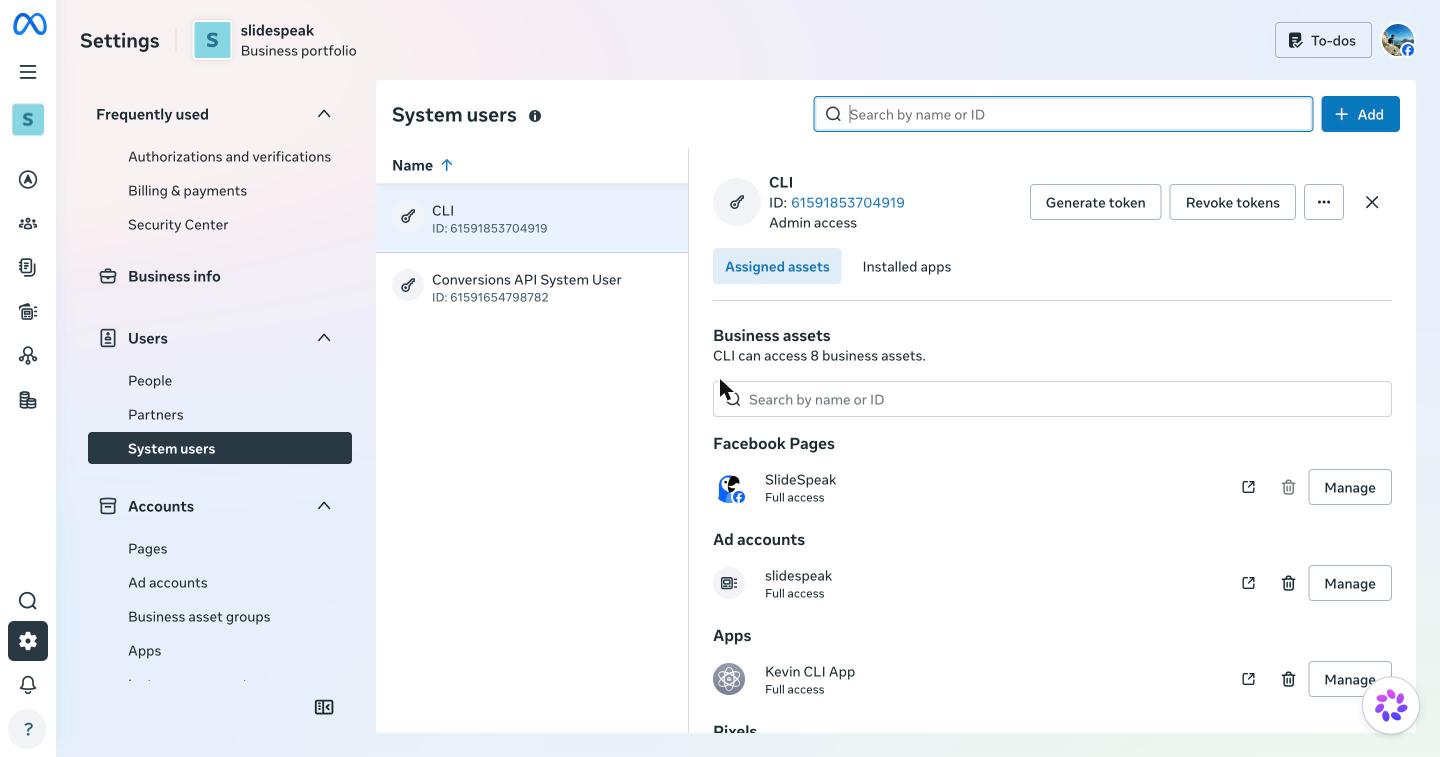
For an agent that runs on a schedule, you want a system user token, not a personal one. A system user belongs to your Business account rather than to your Facebook profile. Its token survives password changes and logouts, and you choose its lifetime when you generate it. Here is the path:
- Open Business Settings, System Users and add a system user. Give it the Admin role if the agent will create ads, or Employee if it only reads.
- Assign the system user to your ad account with the Manage campaigns permission.
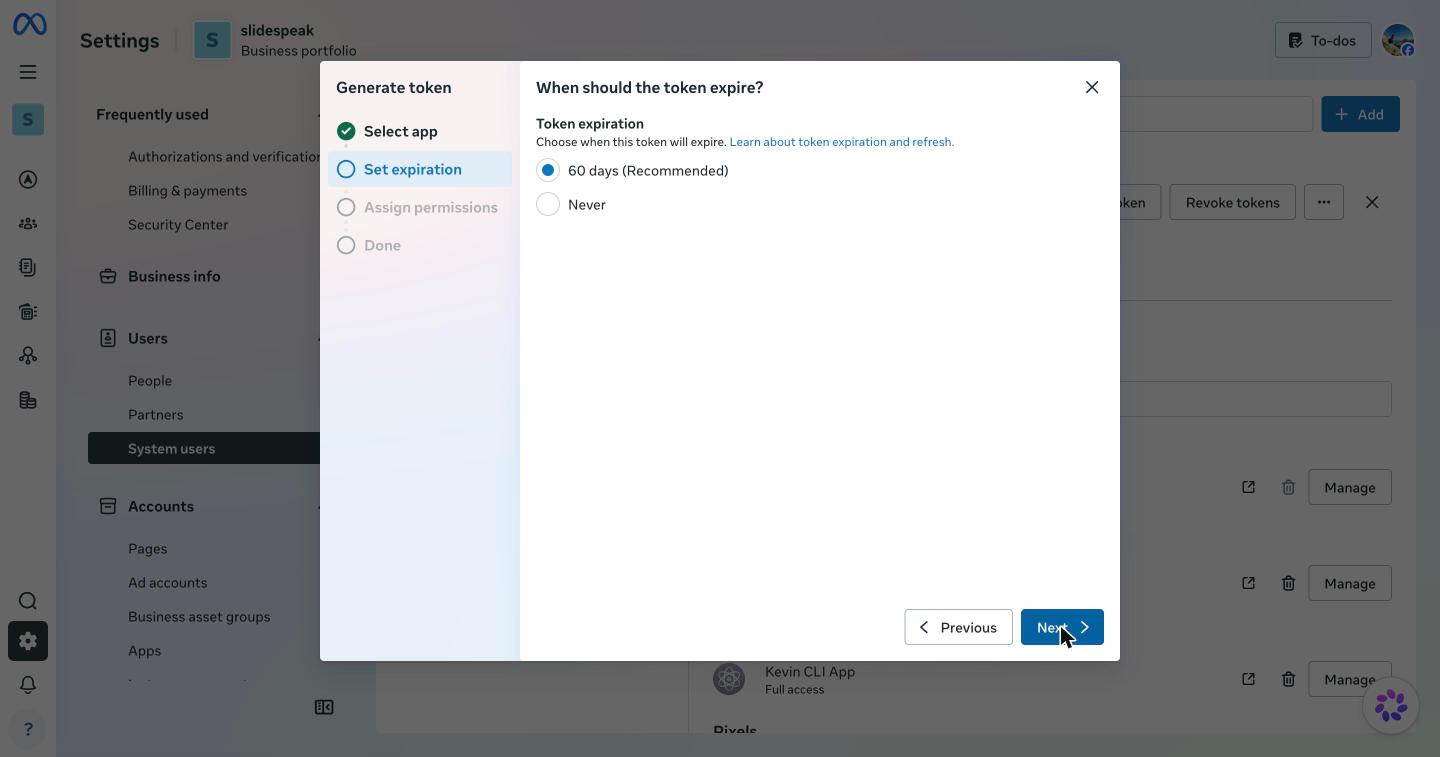
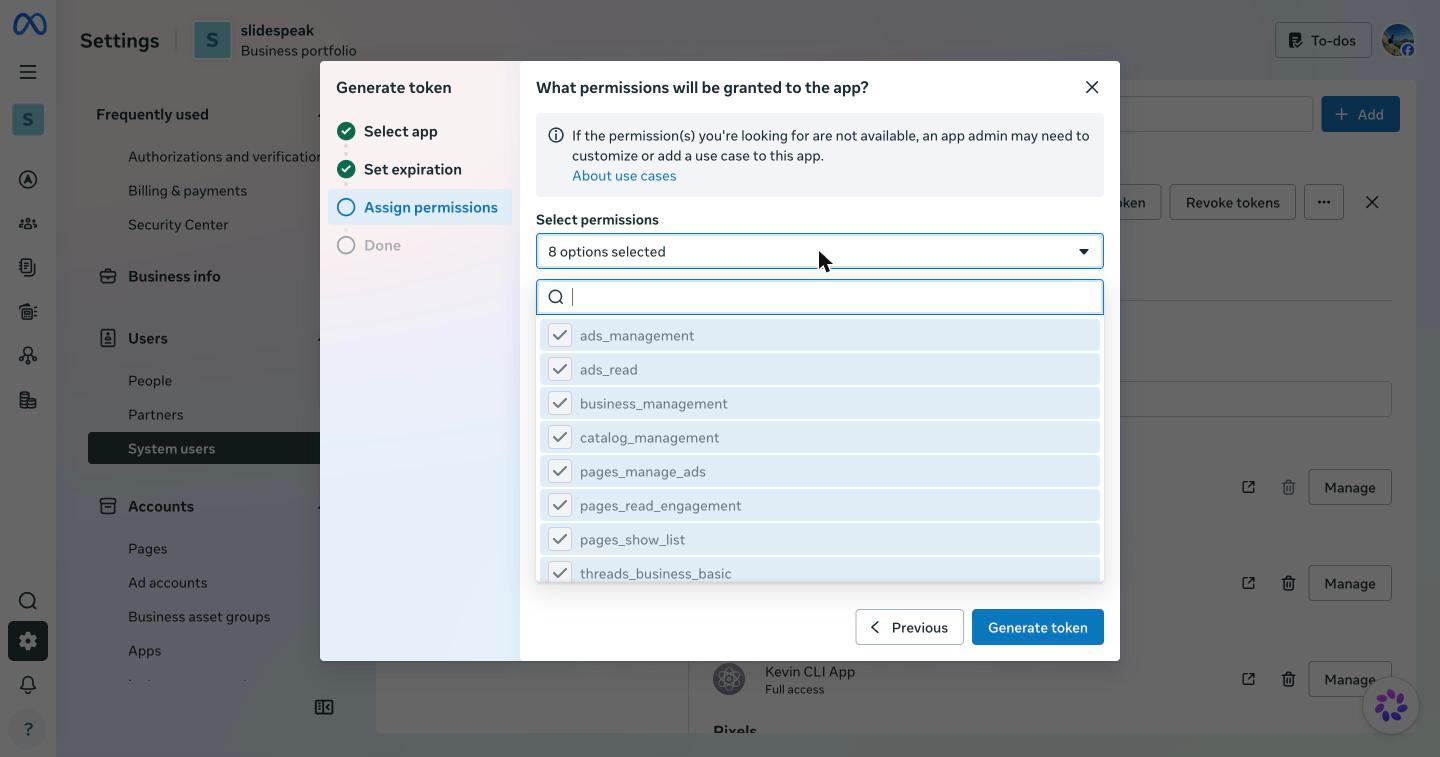
- Click Generate token and pick your developer app. Meta recommends a 60 day expiry; pick Never for an unattended agent, or keep 60 days and put a rotation reminder in your calendar.
- Grant the
ads_readandads_managementscopes. Addbusiness_managementif you plan to use the catalog or page commands. - Copy the token. Meta shows it once.
If you only want to test quickly, the Graph API Explorer hands out a short-lived user token in a few clicks. It expires in about an hour, so do not build the automation on it. Meta documents the difference in its Marketing API authorization guide.
Step 3: Find your ad account ID
The ad account ID is the number in the Ads Manager URL, prefixed with act_. For example, act_123456789. You can also find it under Business Settings, Ad Accounts. Keep the act_ prefix; the CLI expects it.
Step 4: Store the credentials in a .env file
The Meta Ads CLI loads a .env file from the current directory. Therefore, the simplest setup is a project folder that holds the file and nothing else sensitive:
mkdir meta-ads-agent && cd meta-ads-agent
cat > .env <<'EOF'
ACCESS_TOKEN=EAAO...your_system_user_token
AD_ACCOUNT_ID=act_123456789
EOF
echo ".env" >> .gitignore
Two rules. First, never commit the file. Second, do not paste the token into an agent prompt or an instruction file. The agent only needs to know the variables exist, not their values.
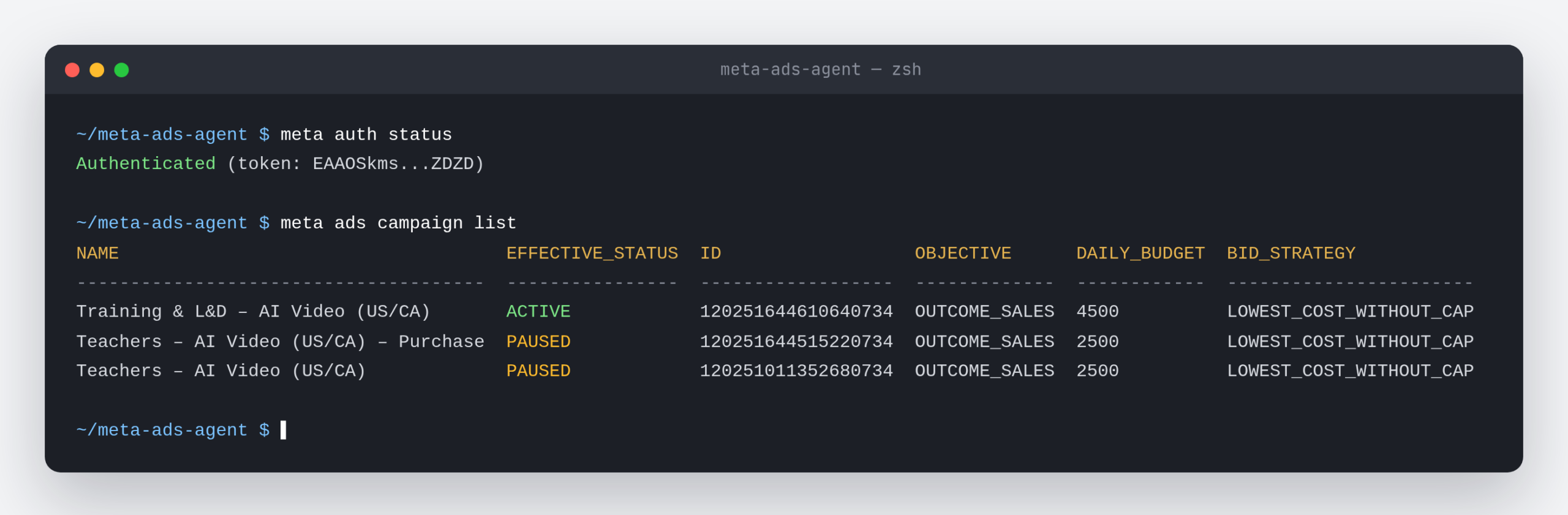
Now check that everything connects:
meta auth status
# Authenticated (token: EAAOSkms...ZDZD)

meta ads campaign list
If the second command prints a table of campaigns, the token has the right scopes and the account ID is correct. If it prints a permissions error, go back to the system user and check the ad account assignment.
Step 5: Learn the three commands agents use most
An agent rarely needs the whole CLI. Nearly every task comes down to reading insights, creating a creative, and creating an ad.
# Performance for the last 7 days, as JSON
meta --output json ads insights get --date-preset last_7d \
  --fields spend,impressions,ctr,cpc,frequency,actions

# Per-ad, week by week
meta --output json ads insights get --ad-id AD_ID \
  --since 2026-08-12 --until 2026-09-03 --time-increment weekly

# Upload an image as a creative, then create a paused ad from it
meta ads creative create --name "Onboarding v2" --image ./onboarding-v2.png \
  --page-id PAGE_ID --link-url https://example.com --call-to-action LEARN_MORE
meta ads ad create ADSET_ID --name "Onboarding v2" --creative-id CREATIVE_ID --status PAUSED
Two details matter for agents. The --output json flag goes before ads, not after the subcommand. And the insights command has no account-wide per-ad breakdown. An agent that wants a table of every ad first lists the ads, then calls insights with --ad-id for each one.
Step 6: Configure Claude Code
Claude Code asks permission before running shell commands it has not seen. For a scheduled agent that is a problem, because nobody is there to click Allow. The Meta Ads CLI needs to be on an allowlist. The fix is a project-level allowlist in .claude/settings.json:
{
  "permissions": {
    "allow": [
      "Bash(meta ads *)",
      "Bash(meta --output json ads *)",
      "Bash(meta auth *)"
    ],
    "deny": [
      "Bash(meta ads campaign update *)",
      "Bash(meta ads adset update *)",
      "Bash(meta --output json ads campaign update *)",
      "Bash(meta --output json ads adset update *)"
    ]
  }
}
The allow list permits every read and create command, in both the plain and JSON forms. The deny list blocks the two commands that can change a budget, and deny wins over allow. The Claude Code settings reference covers the syntax. The automation post explains why budgets stay off limits.
Next, add a CLAUDE.md file to the project so every session starts with the same context:
# Meta ads agent

- Credentials live in .env (ACCESS_TOKEN, AD_ACCOUNT_ID). The CLI loads
  the file from the working directory, so always run `meta` from this folder.
- Always pass `--output json` and parse the result. Never scrape tables.
- Read-only by default. Only create creatives and ads when the task says so,
  and always create ads with `--status PAUSED`.
- Never run `campaign update`, `adset update` or anything that changes budgets.
Now open Claude Code in the folder and ask it to list your campaigns. It should run the command without a permission prompt and summarize the result.
Step 7: Configure Codex
Codex reads an AGENTS.md file the same way Claude Code reads CLAUDE.md, so you can copy the block above into AGENTS.md word for word. The Codex documentation covers where the file can live.
The difference is sandboxing. Codex runs commands in a sandbox that blocks network access by default. The Meta Ads CLI needs the network. You have two options:
- Approve per command. Leave the default sandbox on and approve each network call when Codex asks. Fine for interactive use, wrong for a schedule.
- Allow network for this project. In
~/.codex/config.toml, add a profile for the project that permits network access. Set the approval policy to on-request for anything outside the allowed commands, and keep the profile scoped to the ads project.
Then test the same way: ask Codex to list campaigns and confirm it runs meta ads campaign list and reads the JSON.
Step 8: Decide what the agent may not do
Before you hand a real ad account to an agent, write down the limits. Ours are short:
- No budget or bid changes, ever.
- New ads start paused. A person switches them on.
- Pausing an ad is allowed only if its ad set keeps at least two active ads.
- Every run writes a summary of what it read and what it changed.
Put these in the instruction file, and enforce the first one in the permission allowlist as well. An instruction can be misread. A missing permission cannot.
Common problems
- “Invalid OAuth access token.” The token expired or was generated for a different app. Generate a new system user token and update
.env. - “(#200) Permissions error.” The system user is not assigned to the ad account, or the token lacks
ads_management. Check both in Business Settings. - Empty insights. The date range has no delivery, or you passed an ad account ID without the
act_prefix. - Claude Code still asks for permission. The allowlist pattern must match the full command from the first word. Wrapping the call in
cdorsource .env &&breaks the match. Run the agent from the project folder instead, so the CLI picks up.envon its own.
What to build next
With the Meta Ads CLI wired into an agent, the interesting part starts: reading performance on a schedule, deciding which creatives are fatiguing, and designing replacements. We cover that whole loop, including how the agent designs the new creatives on a Doop canvas, in Automate Meta Ads with a Claude Agent, the Meta CLI and Doop.